

This training is specifically designed for graduate student instructors teaching in the Boston College Summer Session who want to enhance and update their courses on their own time with occasional consultative support from CDIL as needed.
To receive a credential for this training and feedback from CDIL staff, instructors should submit a url of their Canvas site to the link at the bottom of the page.
Course Quality Rubric
CDIL has developed a robust course quality rubric for the Summer Session. Instructors should consult the rubric as they evaluate their courses and identify what aspects they are required to review and update. It serves as a guide on how to process the content below.
Setting Up Your Homepage
Course Content
Adding New Themed Content
To maintain the course theme when adding new content, the simplest method is often just to duplicate an existing page and modify it.
The following are other ways to apply or change a theme on an existing page:
Adding Content to Pages
There are various ways to add content to existing pages:
- Using Headings to Organize Your Content:
- Uploading documents
- Embedding links
- Adding images
Adding and Editing Elements in DesignPLUS
- Adding New Elements
- Adding Paragraphs Before/After Items
- Editing Elements
- Copying, Cutting, Duplicating, and Deleting
Panopto/Instructional Media
What is Panopto?
Panopto is the platform we use to create and share course videos. With Panopto, you can record lectures, upload existing media, and make simple updates like trimming videos, changing titles, or adding thumbnail images.
How Panopto Integrates with Canvas
Panopto is built into Canvas, so you and your students can access videos without leaving the course environment. Panopto also follows course enrollments in Canvas, which means only your students can view your videos unless you choose to share them more widely.
Getting the Best Quality Media in Panopto
Good media quality starts with your recording environment. Find a quiet space with minimal background noise. Position yourself so your face is well-lit from the front. Natural light or a desk lamp works better than sitting with a bright window behind you. Keep your background simple to avoid distractions.
When recording in Panopto, close any unnecessary programs or browser tabs to reduce system lag. Share only the window or screen you want students to see, and check that your slides, documents, or websites are ready to go before starting.
Create a short test recording to confirm audio, video, and screen capture look right, then adjust as needed. A few minutes of preparation can make your final recording clearer, more professional, and easier for students to follow.
Adding Media to Your Course with Panopto
In an online course, media can help bring your teaching to life and build a stronger connection with your students. Use videos to break down complex information or add detail to readings and other course assignments. This will also help give students a sense of your presence, even when they’re learning asynchronously.
- Creating a Panopto Recording
- Uploading a Video from Your Computer to Panopto
- Embedding a Panopto Recording in Canvas
Organizing your Media
Organizing your Panopto recordings makes it easier for both you and your students to find and use course videos. Consistent naming helps students quickly identify the right lecture or topic, while custom thumbnails give videos a more polished and professional look.
Video Captions
Captions provide essential support for hearing-impaired students, but they also benefit students watching in noisy environments, those who are not native English speakers, or anyone who prefers to read along while listening. Enabling machine-generated captions is a simple step that improves clarity, increases flexibility for students, and ensures your course media is more inclusive.
Library Course Resources
If using course resources available via the Boston College Libraries, you have the ability to create a Course Resources list that you can then publish for students. See the guide here, which also includes instructions on how to contact the library to have resources scanned for you: Course Resources.
Assignments
Canvas has several assignment functions that you can use to enhance the student experience, such as the discussions feature, peer review, or quizzes. Canvas has migrated ‘old quizzes’ to ‘New Quizzes’, which will need to be updated in your course.
If none of your assignments are changing from the previous iteration of your course, you will just need to check that existing ones have retained the correct theming style.
If you are creating new assignment content or need to switch existing content to a new theme, you will need to apply the DesignPlus theming to these pages by following the instructions provided above under ‘Theming: Using Themes in DesignPLUS
Assignments
- Discussions (Instructure)
- Peer review (Note that students will not be assigned a peer review if they submit late or do not submit at all)
Quizzes
Canvas has launched ‘New Quizzes’ to upgrade its ‘Classic Quizzes’. Our recommendation is that if instructors want to keep using Classic Quizzes to continue to do so. But if they are creating a new quiz to build it in New Quizzes.
Classic Quizzes
New Quizzes
- Create quizzes in New Quizzes
- How to moderate in New Quizzes
- Create item banks in New Quizzes
- Manage item banks in New Quizzes
Grading
Grading takes up the majority of your time teaching an online course. By organizing your assignments and gradebook in advance, you can provide more efficient and effective feedback to students.
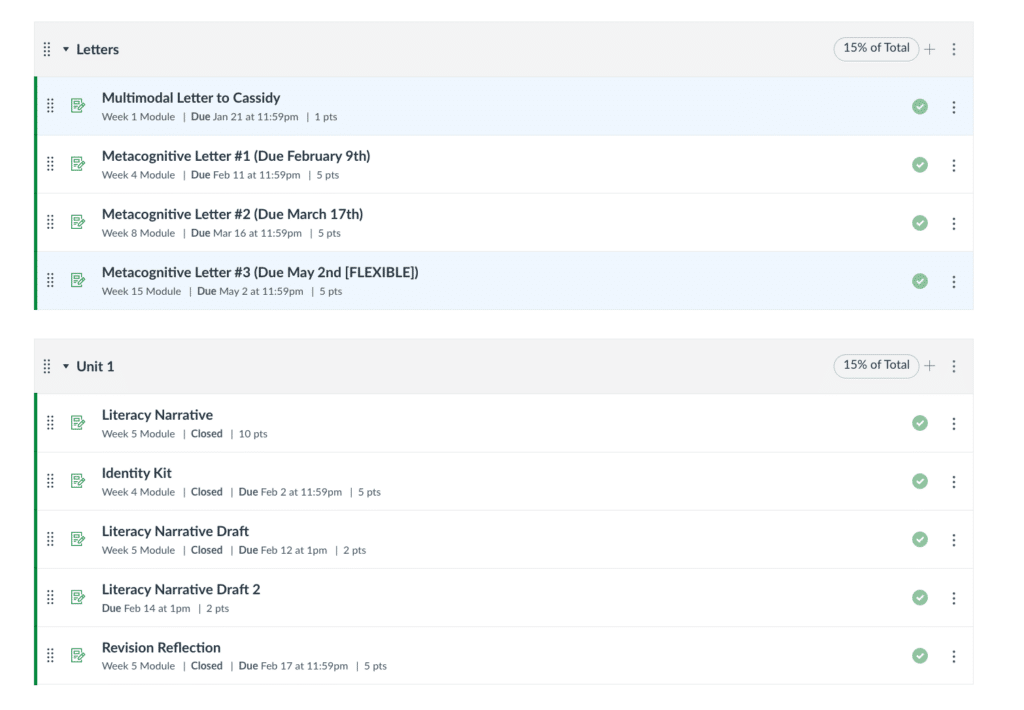
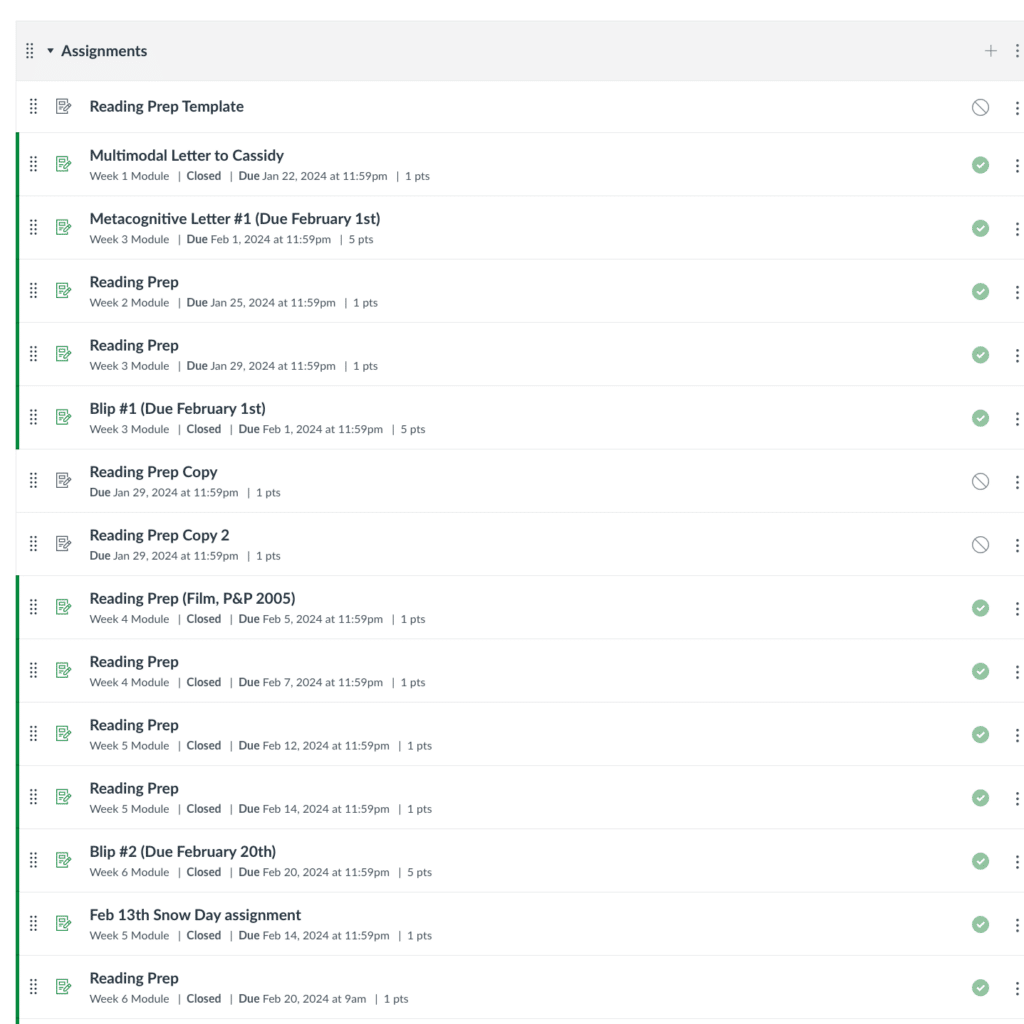
Canvas Gradebook allows you to easily keep all student submissions in one place. You can also create and utilize rubrics, sort assignments into weighted categories, and set late policies. Refer to the pages below for guidance on using Gradebook effectively.
Here are two examples of a course assignment list- one that uses weighted categories and one that does not.
Setting Up Grading Schematics
Reviewing the options available to you in Gradebook can help streamline your grading process by allowing for grades to be released automatically, applying standard late submission penalties, updating due dates in bulk. One impactful change to consider is to standardize the Grade Point Scale for each type of graded activity.
For example, moving to a Check Plus, Check, Check Minus grading scheme for weekly learning activities allows for targeted and speedy feedback. Using a detailed rubric for more substantive assignments allows for detailed and actionable feedback for students.
- Creating Check Plus, Check, Check Minus Grading Scheme from an Assignment
- Points – considering a standard point value (duplicates of 10)
- Rubrics
- Assignment Categories + weighting
- Status colors
- Auto-publish vs. manual publish of grades
- Late policies – how to set for a class
- How to bulk update course due dates
Student Experience
Module Release
You have the ability to release modules at particular times in your course, or to lock them until a specific date. Some instructors unpublish modules, specific pages, or assignments as they work on them. However, having them locked allows students to see the title and date for different activities, so that they can plan accordingly. Locking access to the module still allows the faculty member to work on content/activity before releasing it to students.
- See here for instructions: Locking Modules
Syllabus Page
Ensure that the most up-to-date version of the course syllabus is used.
To ensure access to your syllabus for all prospective students, Student Services prefers that it be uploaded as a downloadable file in the Syllabus tab in Canvas, ensuring accessibility for the whole BC community through Syllabus Search.
Streamline Course Navigation
The navigation bar on the left side of the page has several menu items that may be unnecessary for your course. To streamline your navigation bar, follow the instructions here on removing unused items.
Best Practices For Course Communication
Canvas allows you to communicate with students via announcements and emails. You also have the ability to manage the people in your course site, such as adding TAs. For other queries about adding observers or managing who has access to your Canvas site, contact the Canvas team.
- Announcements
- Adding Users to Canvas Course (only your shortform BC email can be used)
- How to Email Users Via Canvas Inbox (please note that students can turn off all notifications)
Student View
You have the ability to preview what students will see in your course via the “Student View” option. See the instructions to utilize this feature: How to View a Course Using Student View. Note that this does not work with some tools used in Canvas.
Students find it helpful to have assignments appear in their Canvas “to-do list”. Read through the following resource to see how you can use the to-do list as an instructor: How to use the To-Do List as an Instructor.
Final Review Steps
Scan for Broken Links
Checking for Accessibility
When adding content to your course, it is important to have consistent formatting for clarity and accessibility.
UDOIT is an accessibility auditing tool that scans your Canvas course and helps identify and fix accessibility issues that could impede student learning.
Completion Check-List
For a Summer Course Canvas site to be considered complete and ready for the semester, Instructors need to complete the following actions based on the Summer Course Build Rubric:
- Update Homepage with:
- Correct course information (course code, title, and semester)
- Update instructor information
- Contact details
- Office hours details
- Self-introduction to the course by the instructor
- Links to both Syllabus page and Modules
- Update module list (if being used)
- Configure Gradebook to weigh and calculate grades as outlined in the Syllabus
- Complete accessibility check and resolve accessibility issues using the Accessibility Checker (UDOIT)
- Update dates for assignments and other key course dates to reflect BC’s academic calendar
- Course resources from BC Library added (if being used)
CDIL will review your submission and respond within 2-3 weeks.
Submit your Canvas URL to the Canvas assignment
Intermediate Canvas Skills Credential Check-List
Instructors who are required to receive a digital credential in Intermediate Canvas Skills for their work in updating their Summer Course Canvas site must do so by completing the following additional actions:
- Record and embed a course introduction video from Panopto in the Introduction Module
- Update course content with different forms of content such as PDFs, embedded videos, podcasts etc.
- Grading scheme changed to Check Plus, Check, Check Minus for one assignment group
- Introduction activity is changed to reflect instructor’s interests.
As part of the submission process instructors should include brief bullet points of their updates and the location in the Course Canvas site.
Submit your Canvas URL to the Canvas assignment
Support
Summer Session instructors should contact cdil-inbox@bc.edu for support.