Including basic information about who’s teaching a course on the homepage can help convey a welcoming, personal presence, particularly in online courses.
Note: If you don’t see the DesignPLUS sidebar in your Canvas page, use the keyboard shortcut Control + 1 to enable it. See the Enabling DesignPLUS page for more details.
Walk-through Video
Step-by-Step Instructions for Adding
Note: If you want to just edit instructor information, skip to the next set of instructions below.
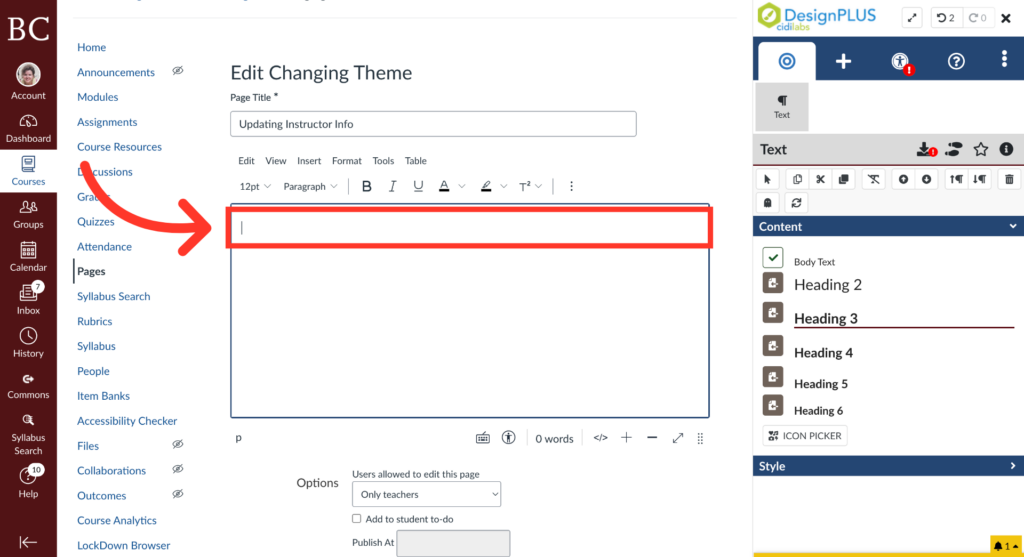
1. Click into the Rich Content Editor
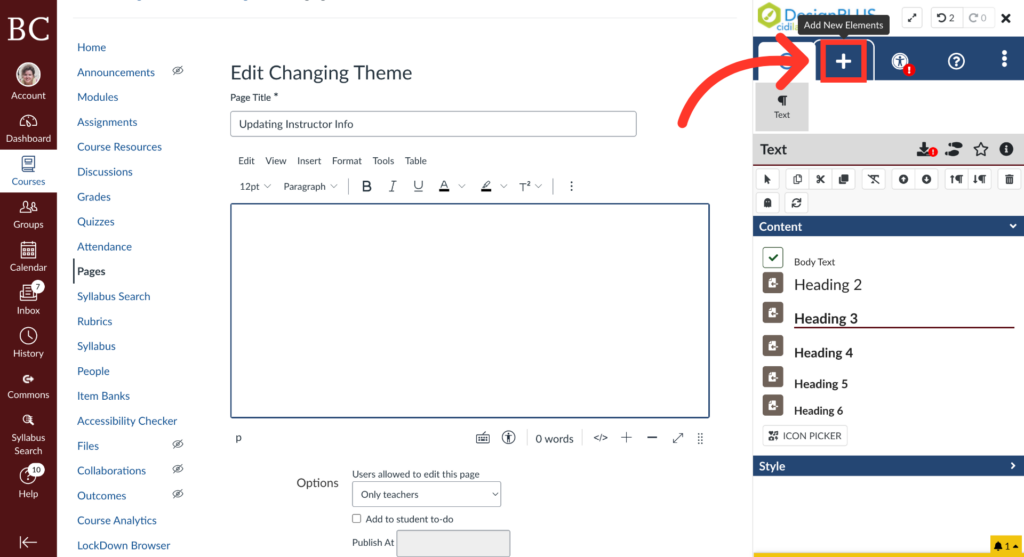
2. Click “Add New Element”
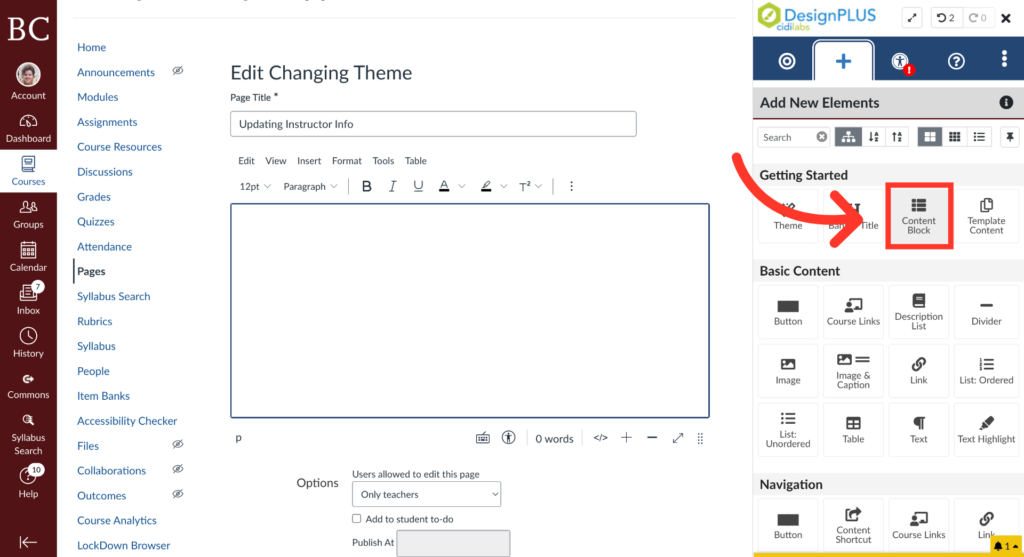
3. Select the “Content Block” Button
4. Enter the Search Bar
Scroll down the editing menu until you see the search bar, and click into it.
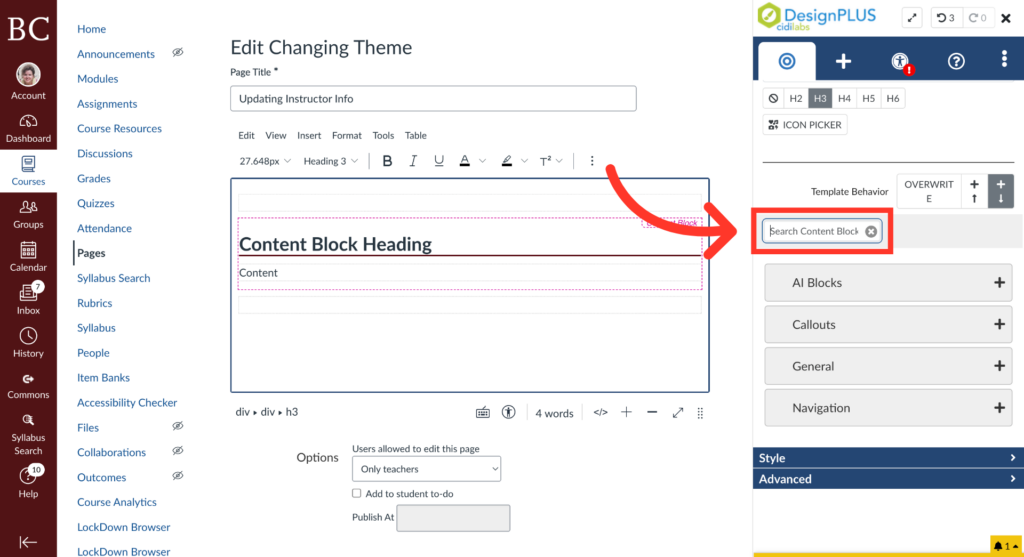
5. Enter Search Term
Enter the term related to the user to filter content blocks for instructor information.
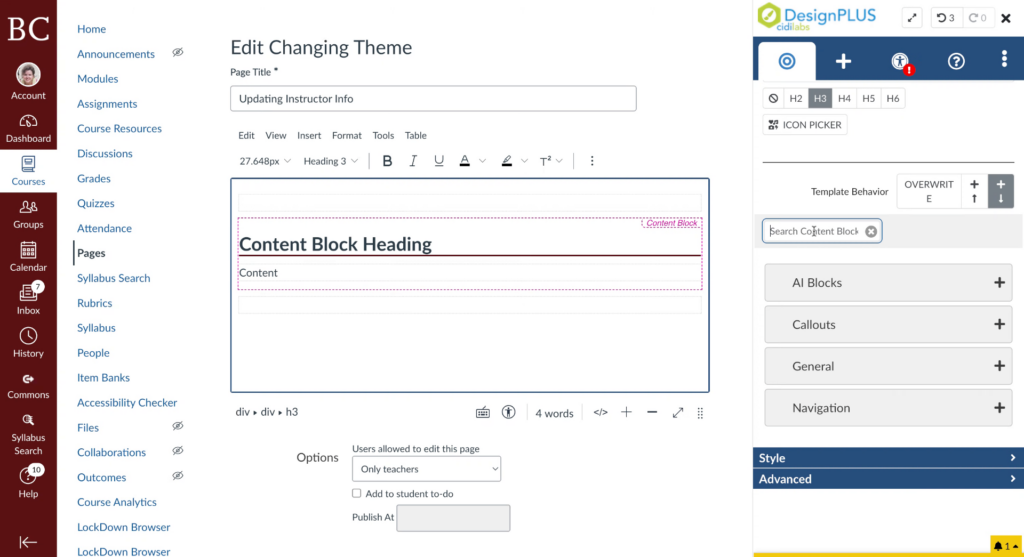
6. Search “User Details”
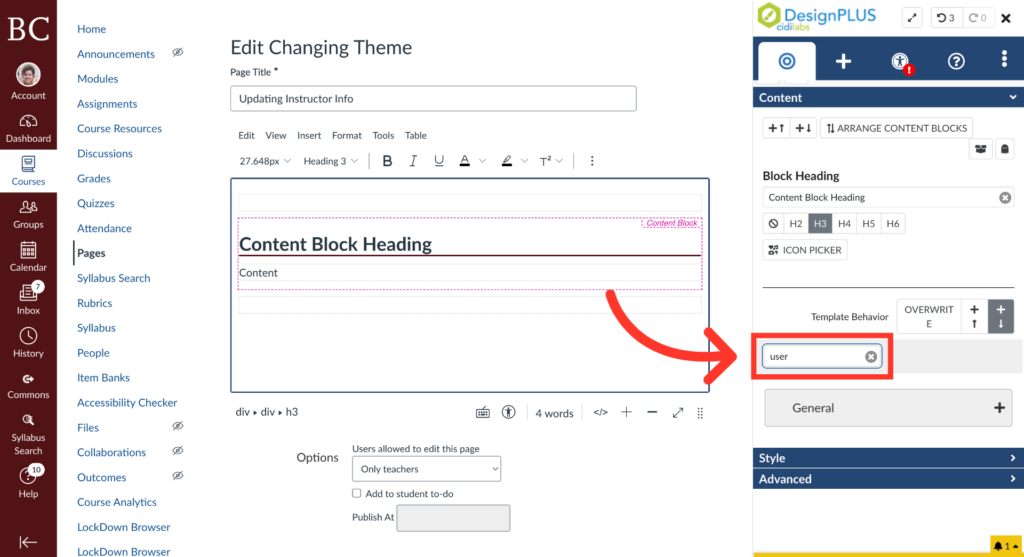
7. Open the “General” Menu
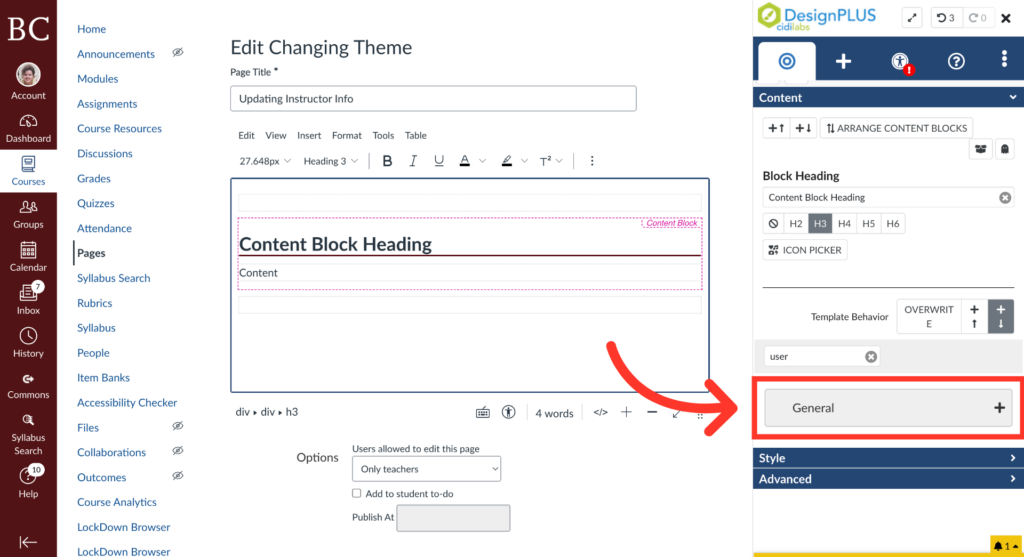
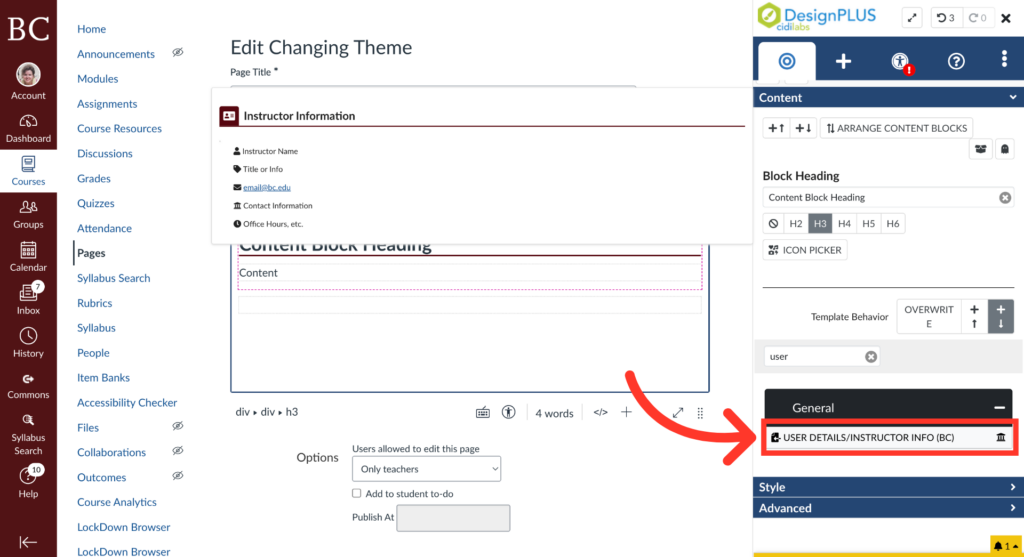
8. Click “User Details/Instructor Info (BC)”
Step-by-Step Instructions for Editing
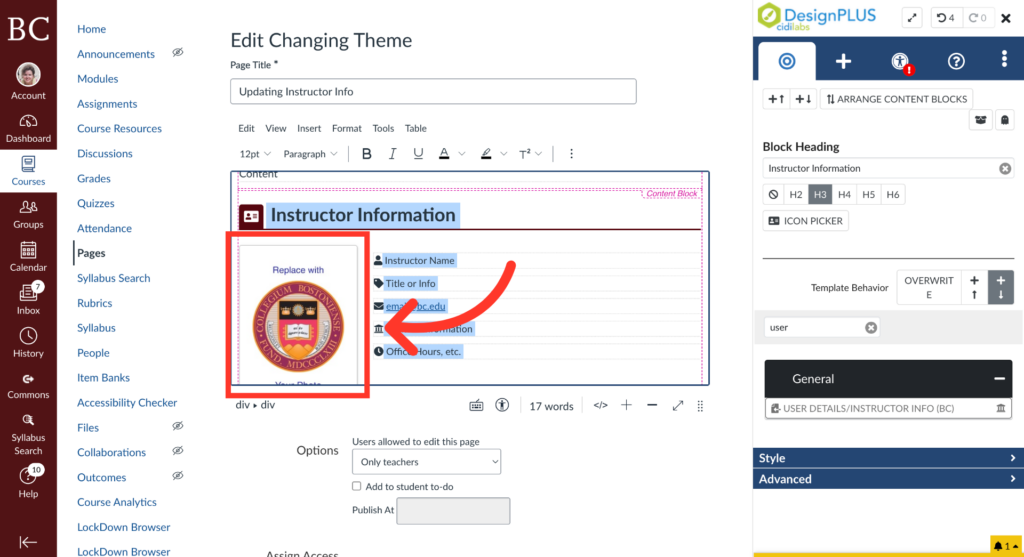
1. Add Instructor Image
Select the stand-in image to replace with an instructor photo.
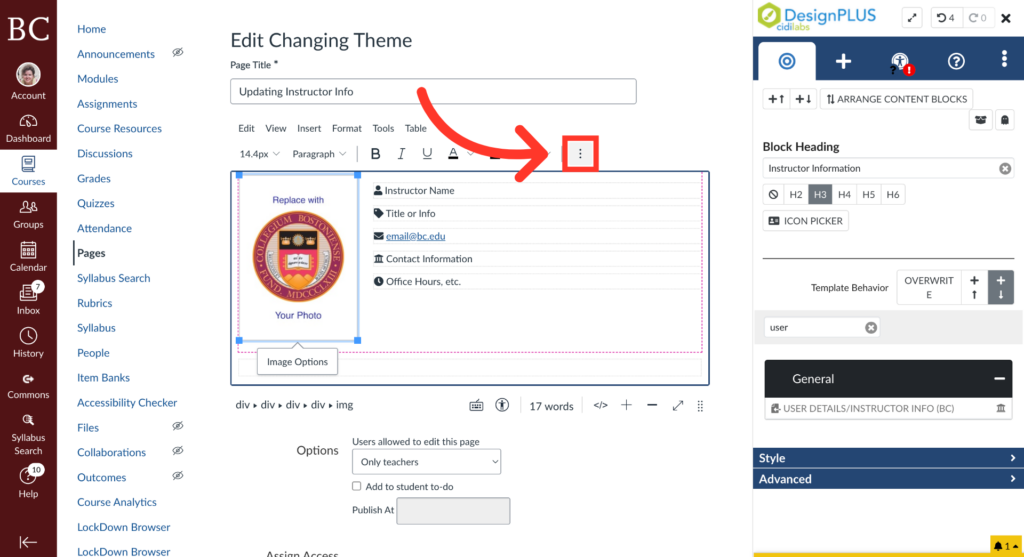
2. Open the Kebab Menu
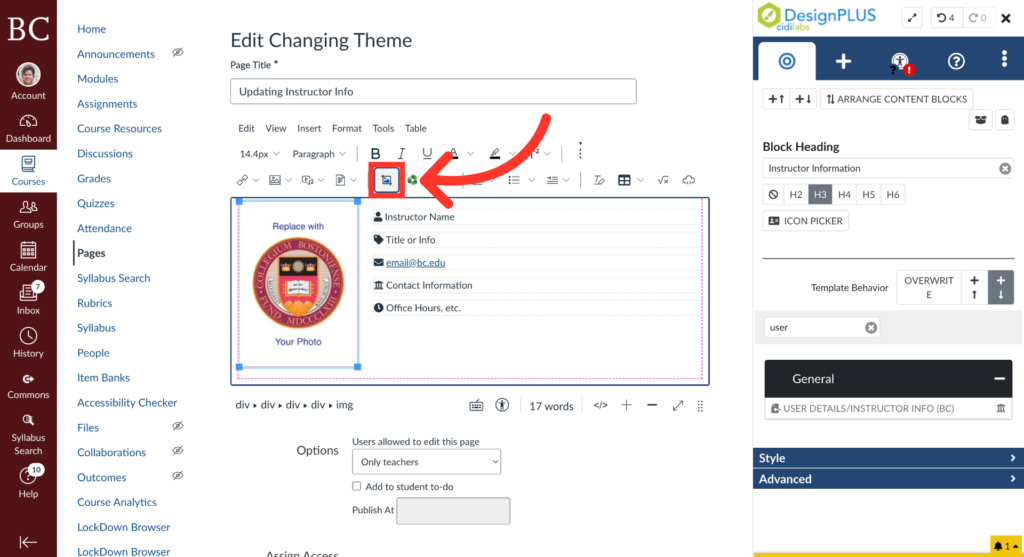
3. Click the “Cidilabs” Application Button
4. Select Image Source
For this example, we will be using an image from Canvas.
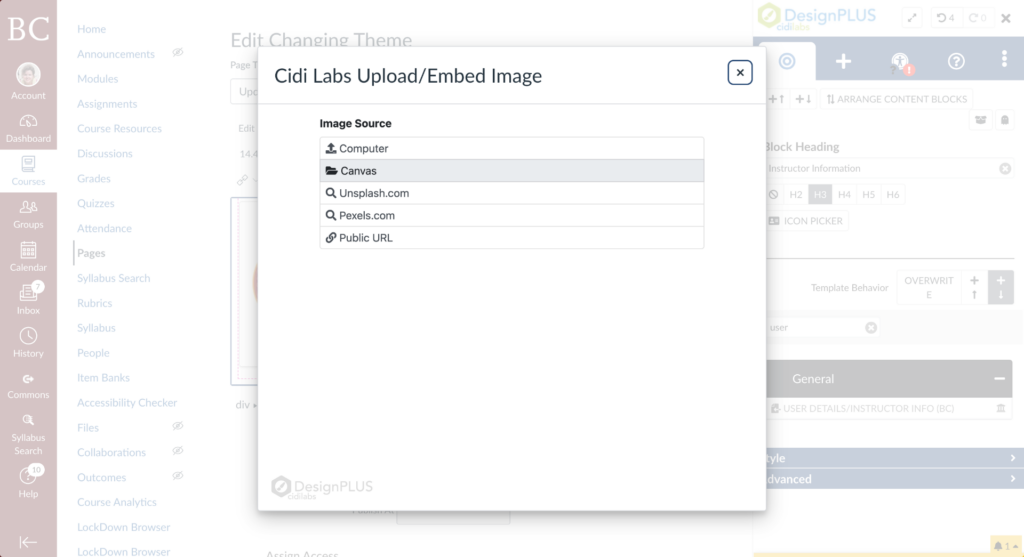
5. Upload and Embed Media
Once you’ve selected your image, click “Upload and Embed.” If you want to use advanced editing options, see the Advanced Image Editing tutorial.
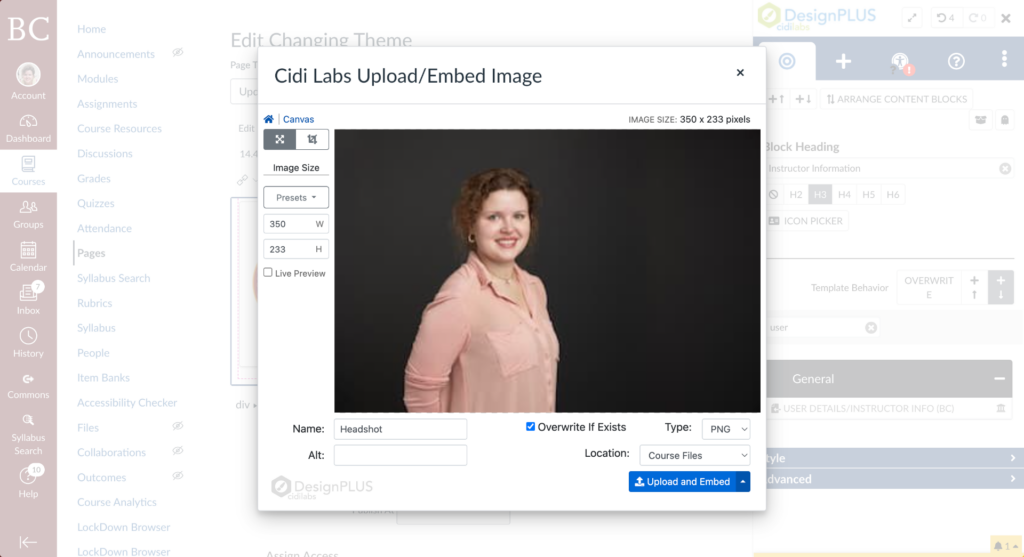
6. Update Content Block
Click into the text of the Content Block to update each section as needed.
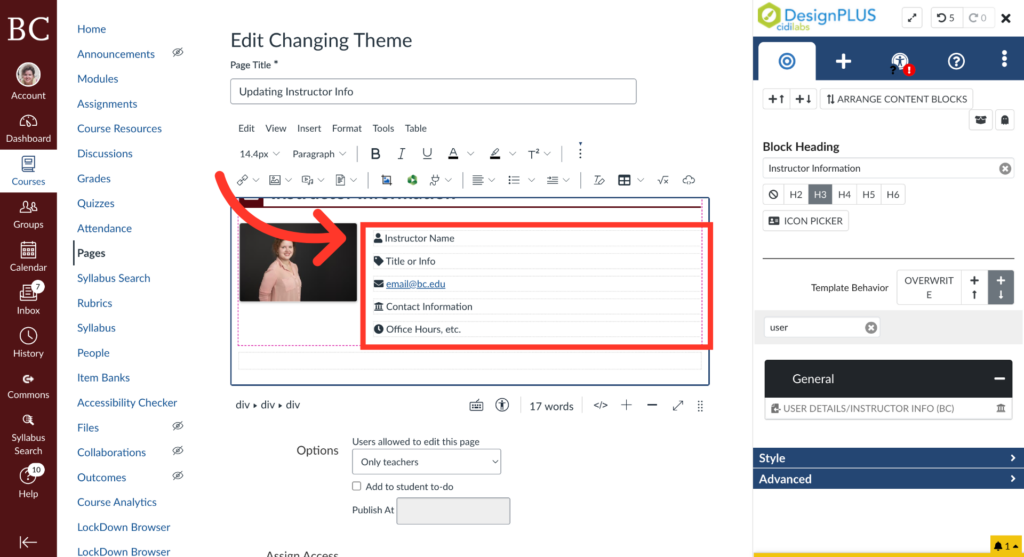
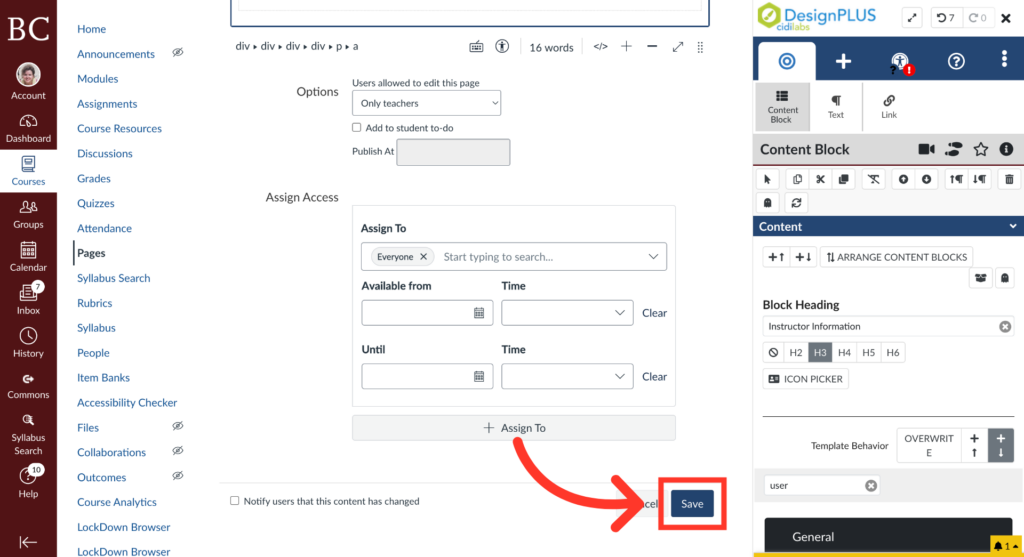
7. Click “Save”