How to Upload Your Syllabus to Canvas

This guide shows how to upload your syllabus to Canvas.

Video Walkthrough

Step-by-Step Instructions

1. Open the Canvas site to which you’d like to upload your syllabus
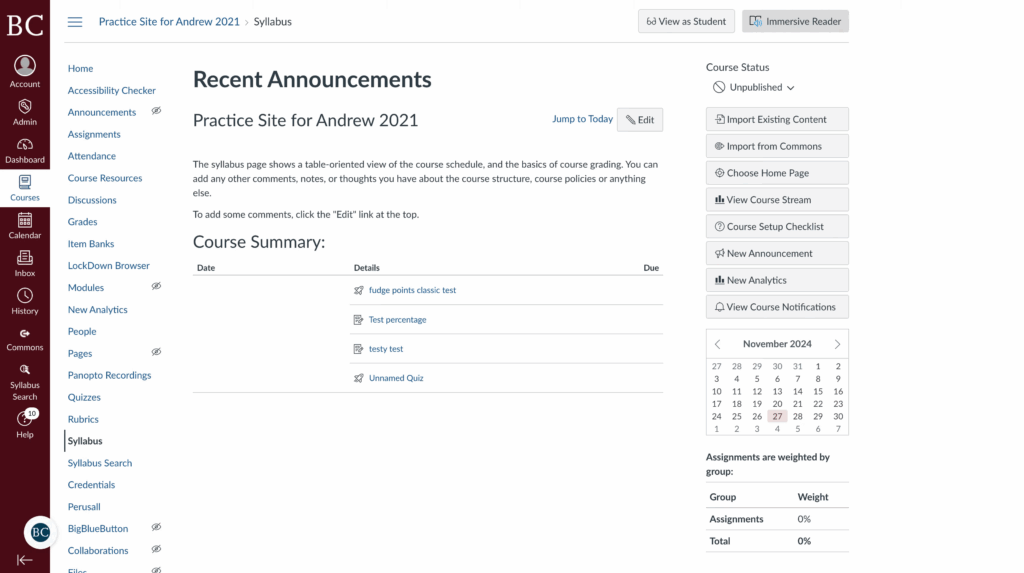
Screenshot of a course management dashboard titled “Practice Site for Andrew 2021” showing recent announcements, course summary with assignments and quizzes, a sidebar menu, calendar, and various course tools on the right.

2. Click the “Syllabus” tab on the course navigation bar
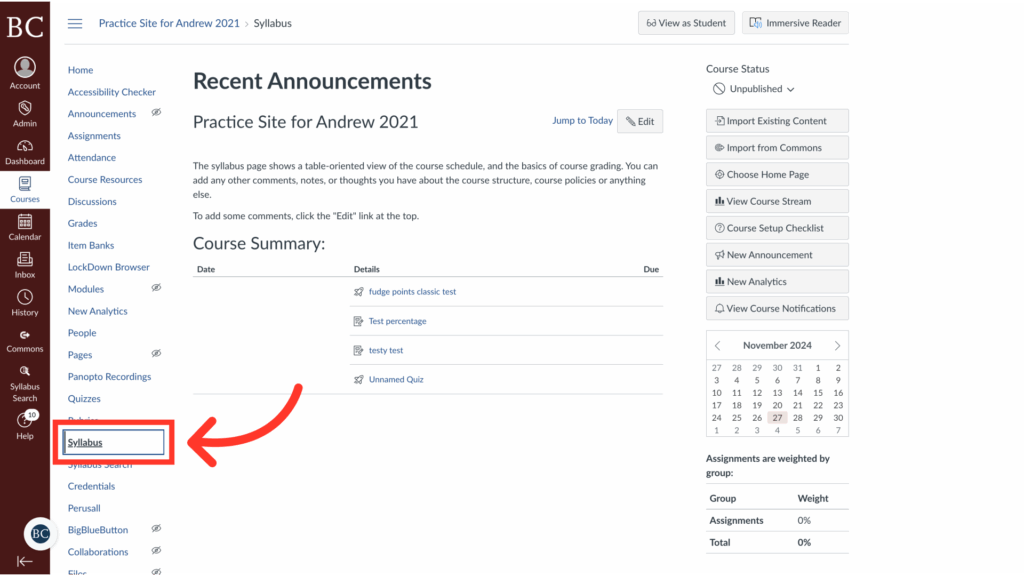
Screenshot of a course webpage showing recent announcements. A large red arrow points to the Syllabus link in the left navigation menu, highlighting where to access the course syllabus.

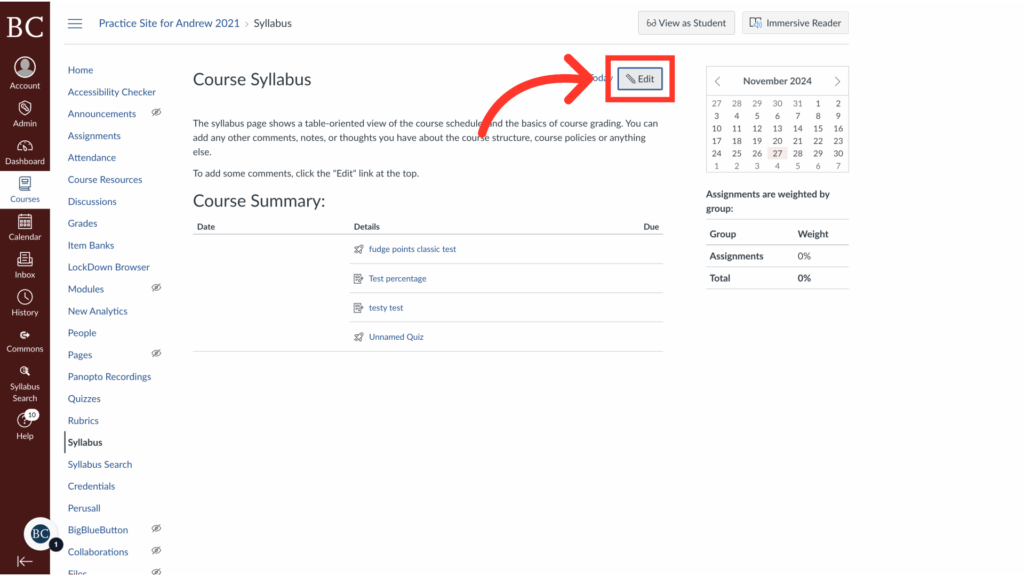
3. Click “Edit”

A screenshot of a course syllabus page with a large red arrow pointing to an “Edit” button in the upper right. The left sidebar displays navigation options, and a calendar is visible on the right side.

4. Click the document icon on the toolbar

Screenshot of a course syllabus editing page in an online platform. A large red arrow points to a rectangle highlighting the table icon in the text editor toolbar. A calendar and assignment weights are visible on the right.

5. Select “Upload Document” from the dropdown menu
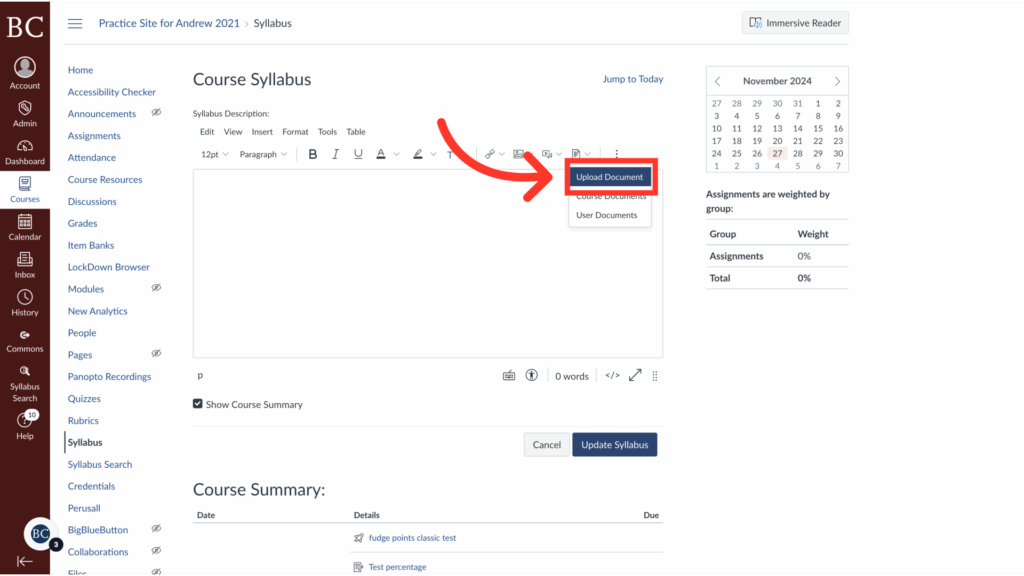
Screenshot of a course syllabus editing page in Canvas LMS. A large red arrow points to the Upload Document button in the toolbar, highlighting where to click to add files. A calendar and course navigation menu are visible.

6. Click the rocket ship to access the files on your device
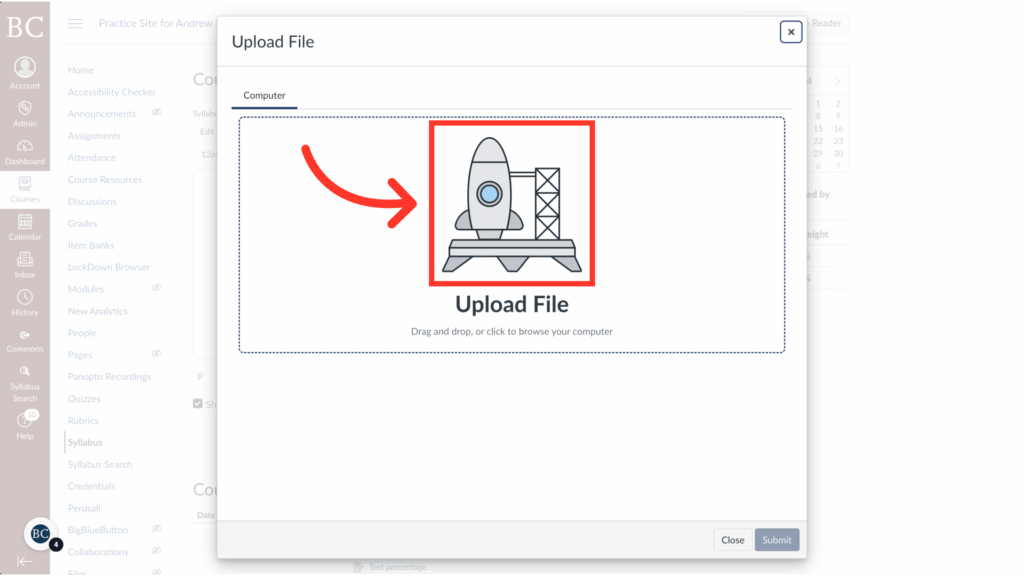
A computer screen shows an Upload File dialog with a rocket icon in a red box and an arrow pointing to it, indicating where to drag and drop files to upload. Buttons for Close and Submit are at the bottom.

7. Select the document you would like to upload
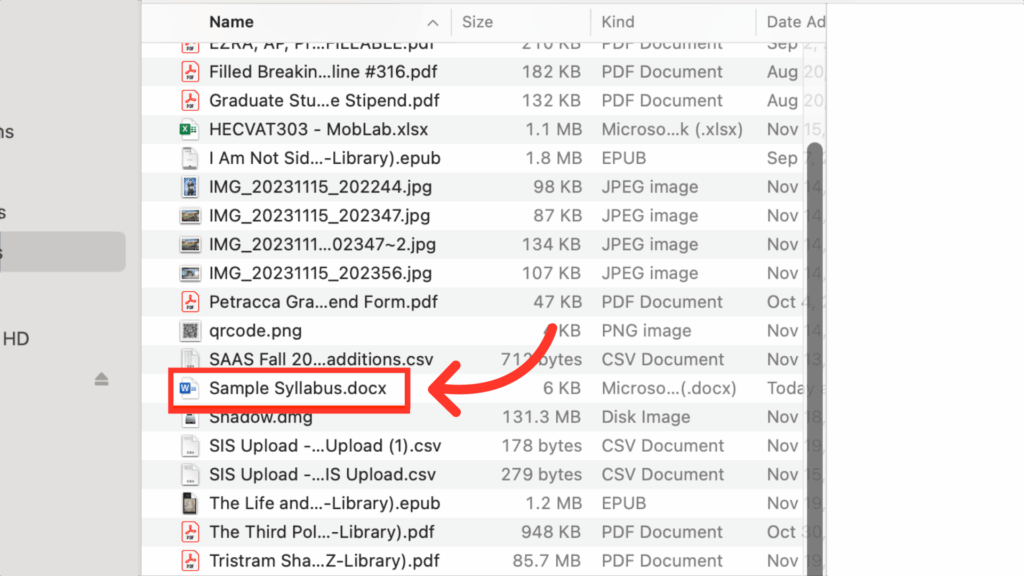
A computer file directory window shows various files. A red arrow points to a highlighted file named “Sample Syllabus.docx” among documents in different formats, such as PDF, JPG, and CSV.

8. Click “Submit”

It’s okay if no preview is available for the file.
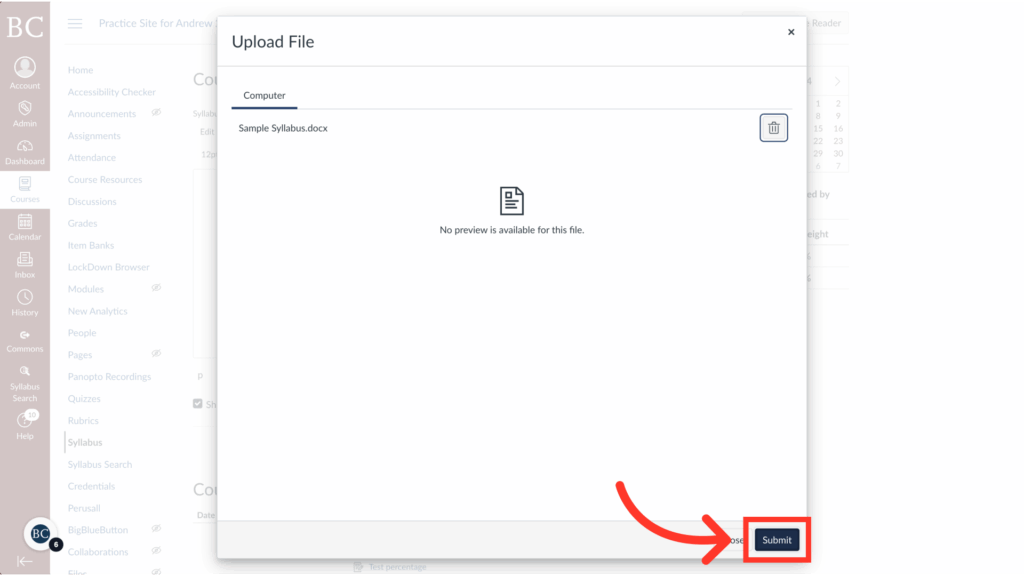
A file upload screen displays Sample Syllabus.docx selected with a “Submit” button highlighted by a red arrow in the bottom right corner. The interface has a light background with menu options on the left side.

9. Click “Update Syllabus” to save your changes
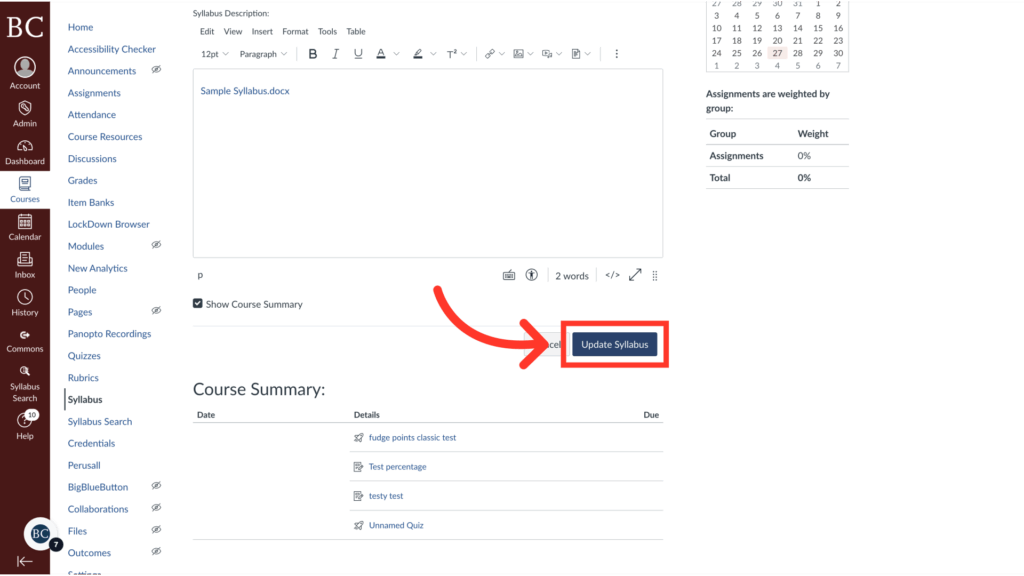
A screenshot of an online course syllabus page with an arrow pointing to a highlighted Update Syllabus button. Various navigation options appear on the left sidebar and course summary is visible below.

Last Updated