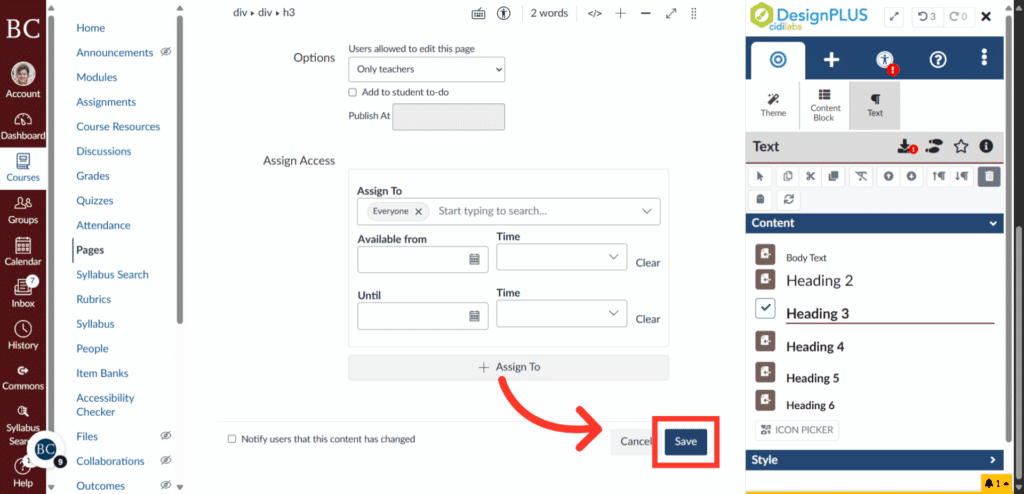
The Action Bar provides precise ways to edit content through cutting, copying, duplicating, and deleting tools.
Note: If you don’t see the DesignPLUS sidebar in your Canvas page, use the keyboard shortcut Command + 1 to enable it. See the Enabling DesignPLUS page for more details.
Video Walkthrough
Step-by-Step Instructions
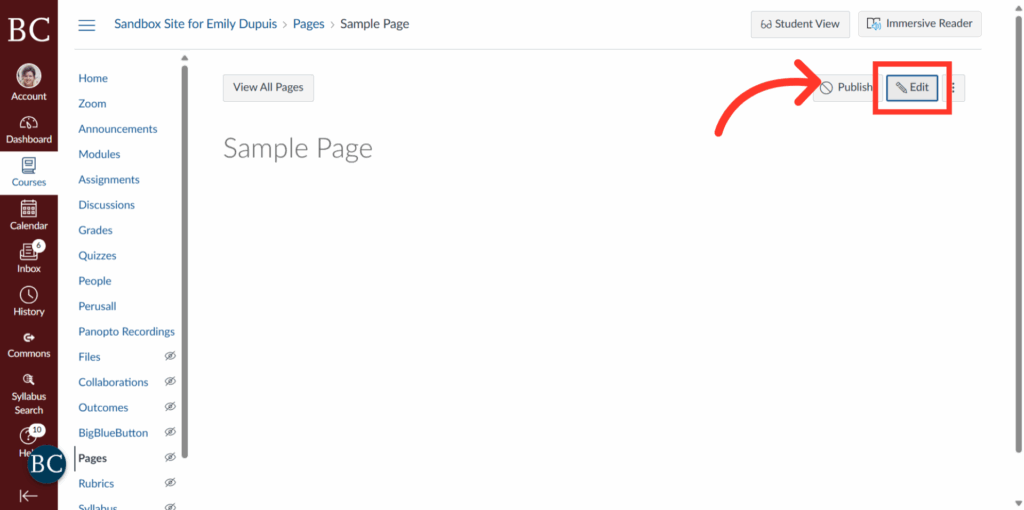
1. Click “Edit”
To begin, click “Edit” in the top right of your Canvas page.
2. Click the Edit Tab
Be sure you’re in the editing screen in DesignPLUS by clicking on the leftmost tab in the menu
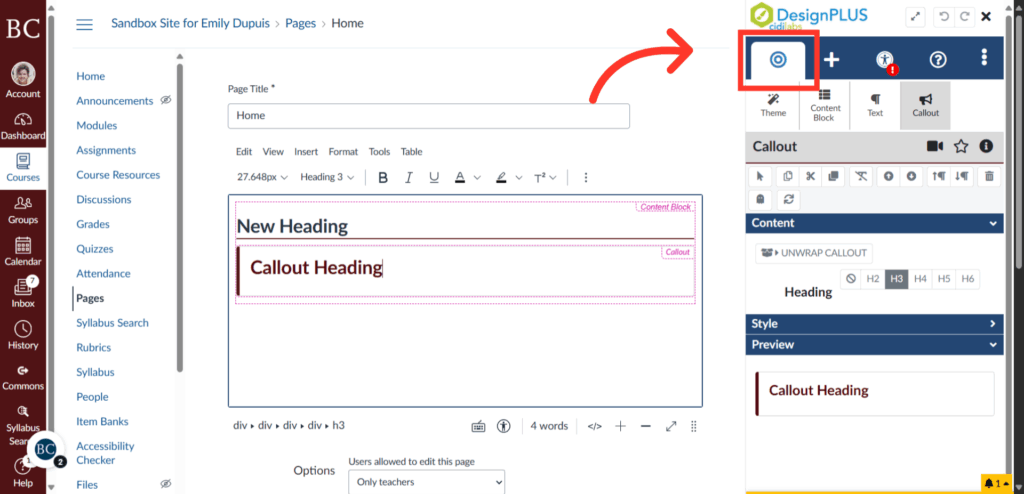
3. Click the Page Element to Change
Click into the editing window to select the element you wish to change. For this example, we’ll be editing a content block containing a callout.
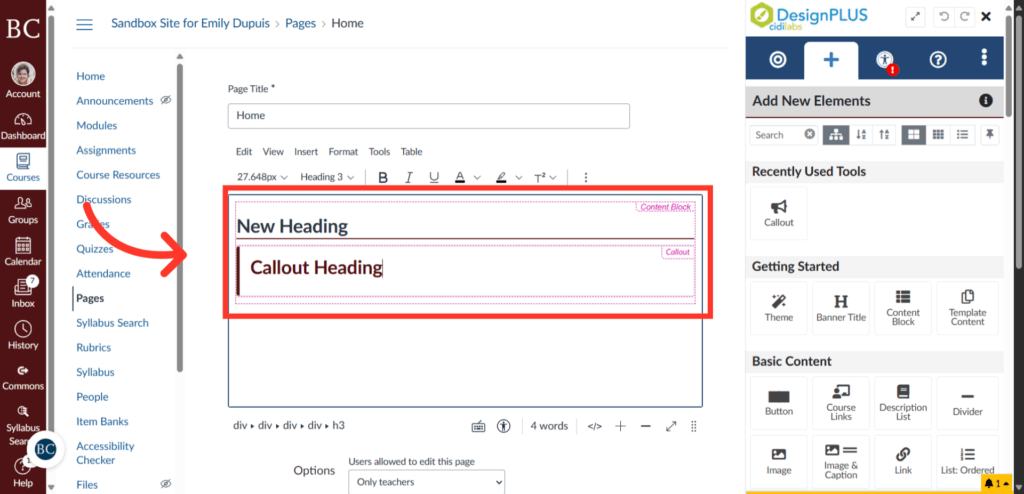
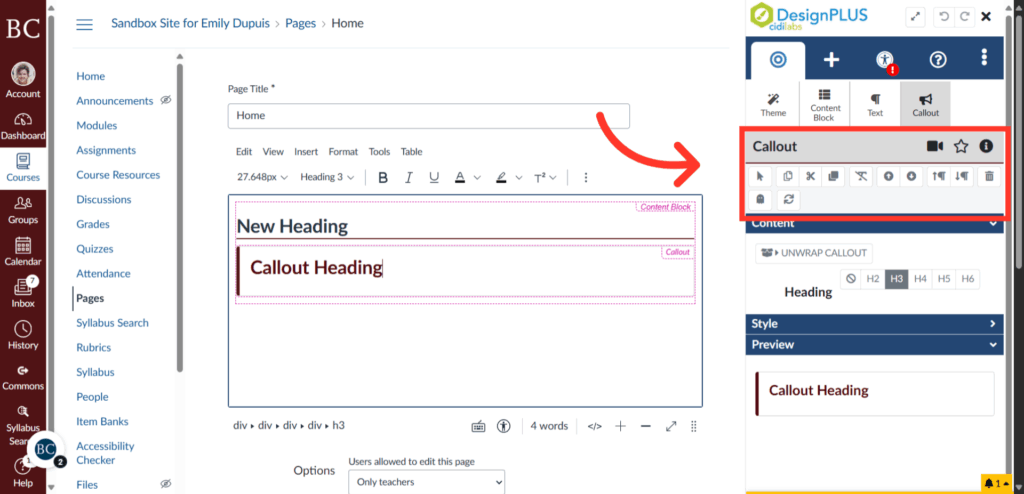
4. Locate the Action Bar
The action bar is located as indicated on the DesignPLUS menu. The element which is being edited will be named at the top of the action bar; in this case, it is the Callout block.
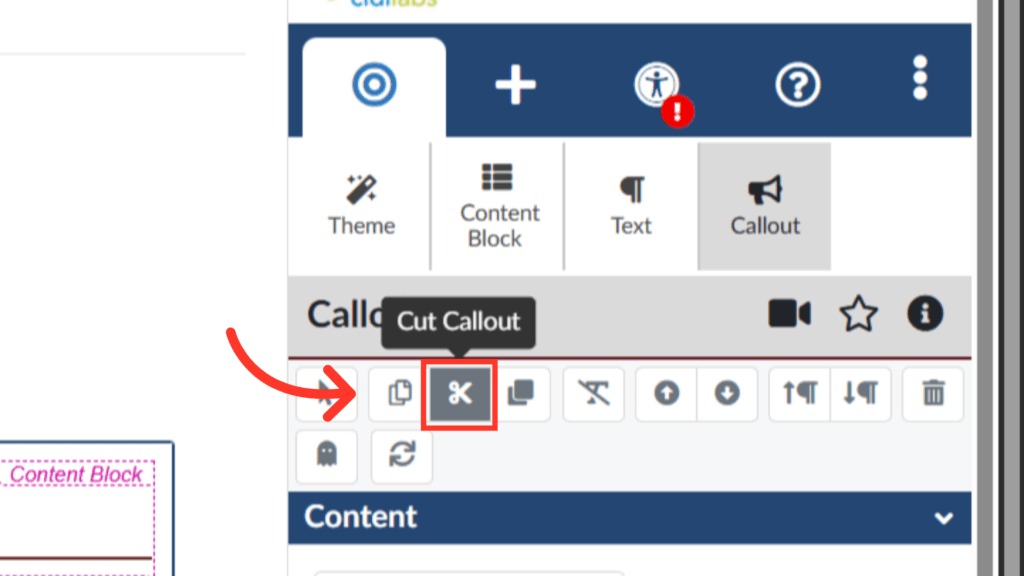
5. Click the “Cut” button to cut an element
Click the indicated button to cut the current element from your page. It will remove the element from the Canvas page and will add it to your clipboard for pasting elsewhere.
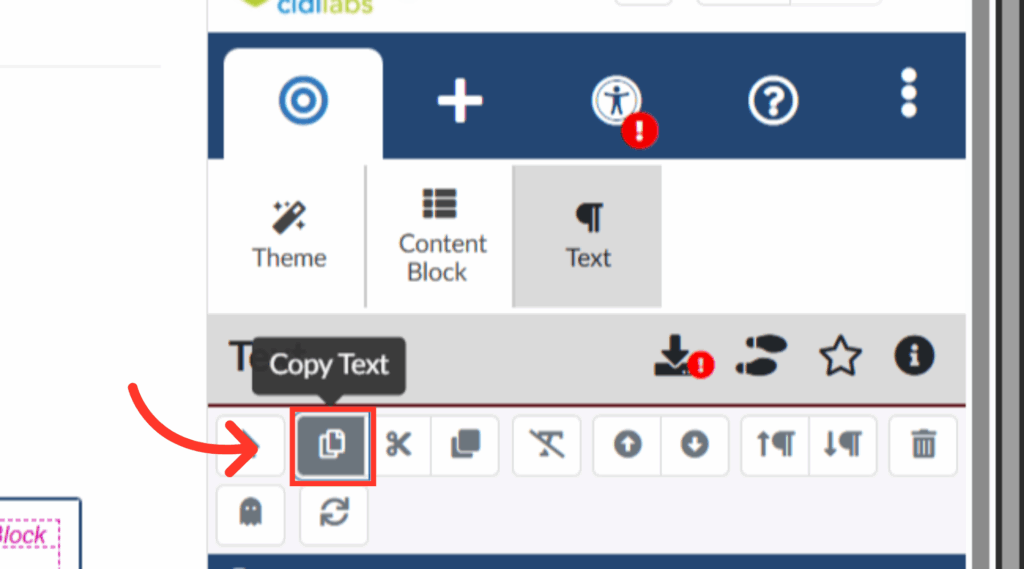
6. Click the “Copy” Button to copy an element
Click the indicated button to copy the currently selected element. In this example, we are copying the text in the Content Block. This will copy the element to your clipboard.
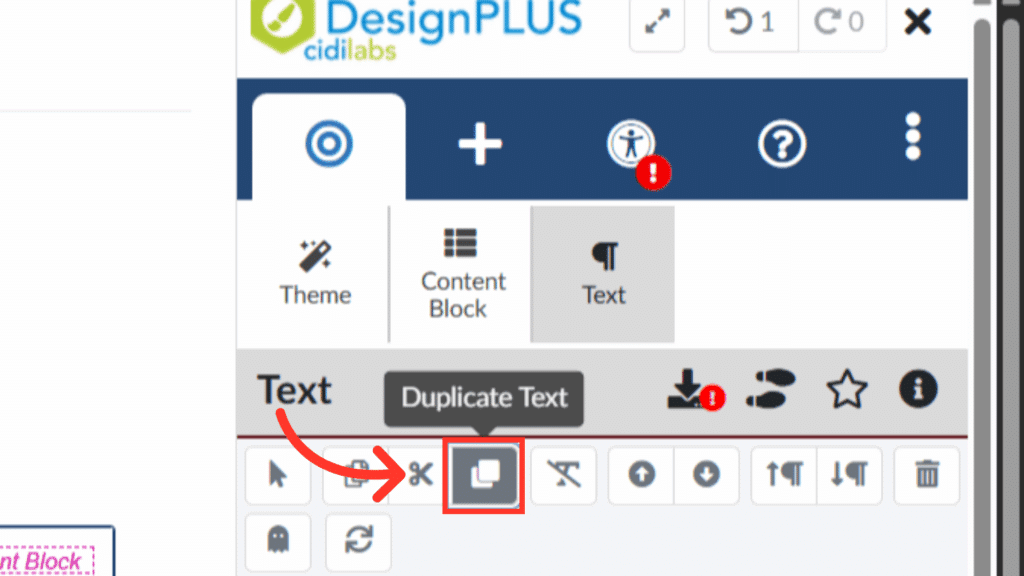
7. Click the “Duplicate” button to duplicate an element
You can also duplicate elements to instantly create a copy in your Canvas page by clicking the indicated button. Note that you should only duplicate each element once; duplicating the same content multiple times can result in content loss.
8. Click “Save”
Complete your changes by clicking ‘Save’ to apply all edits and update your content.