This guide explains how to enable Lockdown Browser for a Canvas Quiz. Students will be prompted to download LockDown Browser when they go to take the quiz. You can also send them this link to download LockDown Browser.
Video Walkthrough
Step-by-Step Instructions
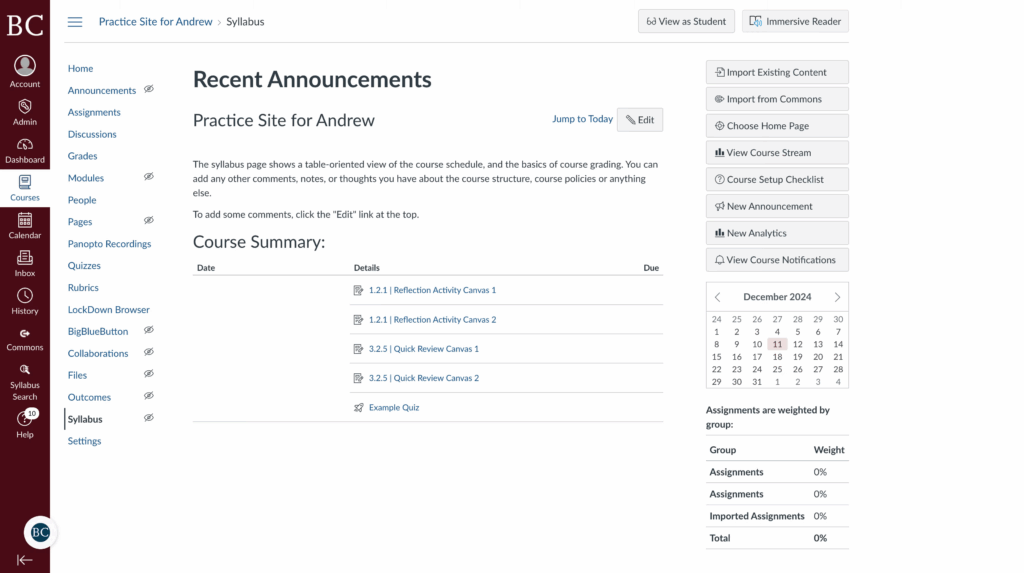
1. Open the Canvas site with the Canvas Quiz
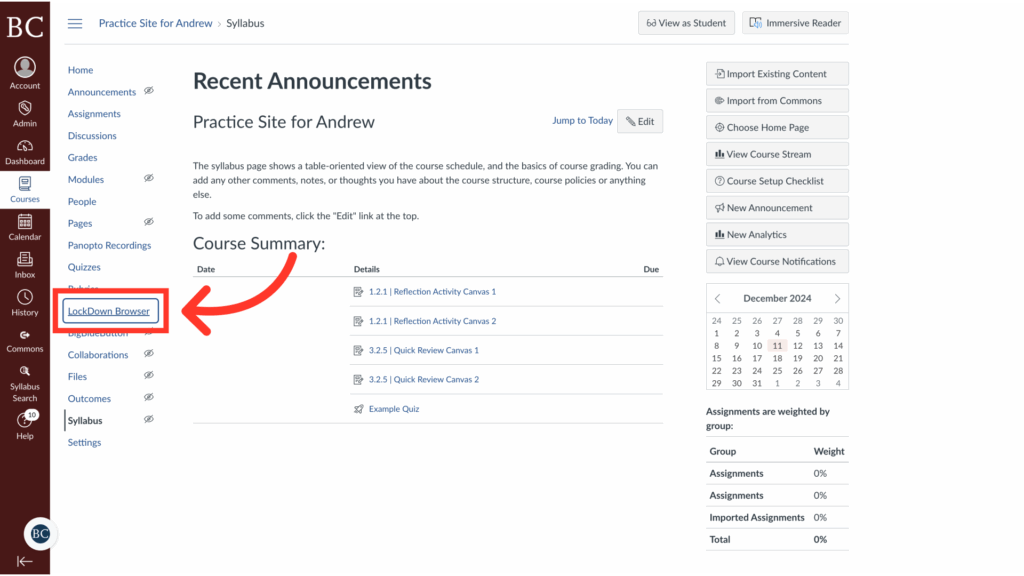
2. Click “LockDown Browser” on the course navigation bar
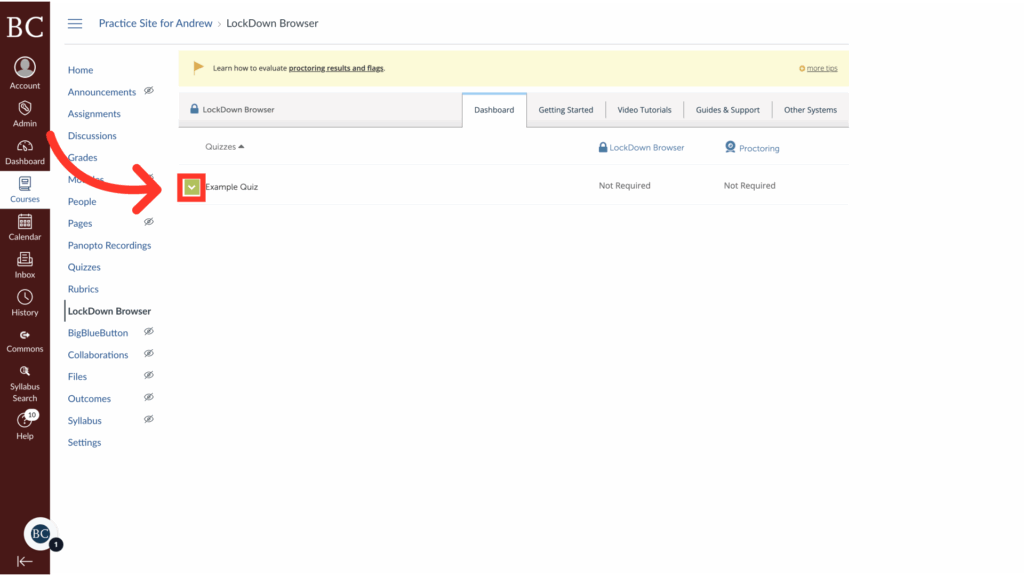
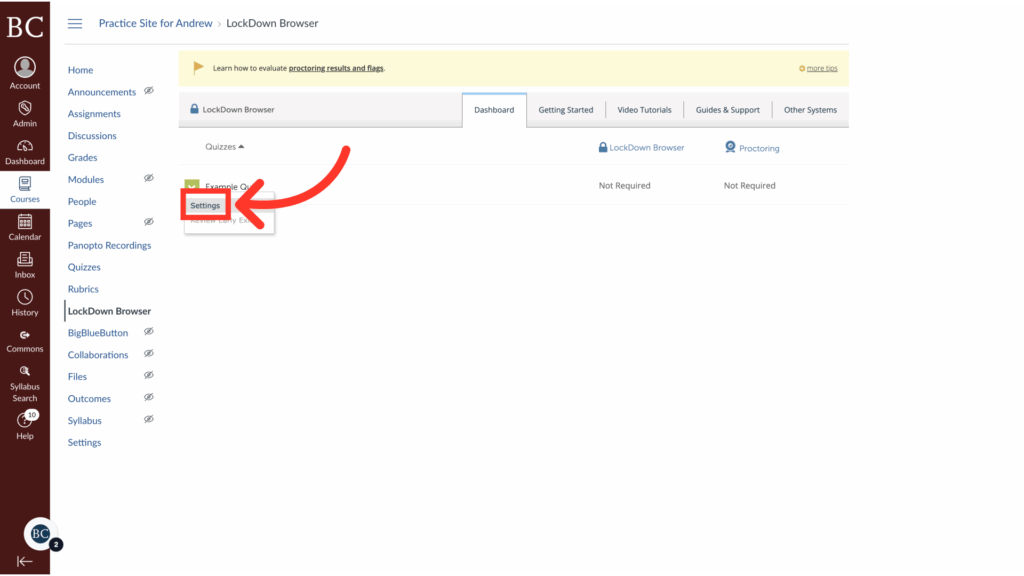
3. Click the dropdown arrow next to the quiz for which you’d like to enable LockDown Browser
4. Click “Settings”
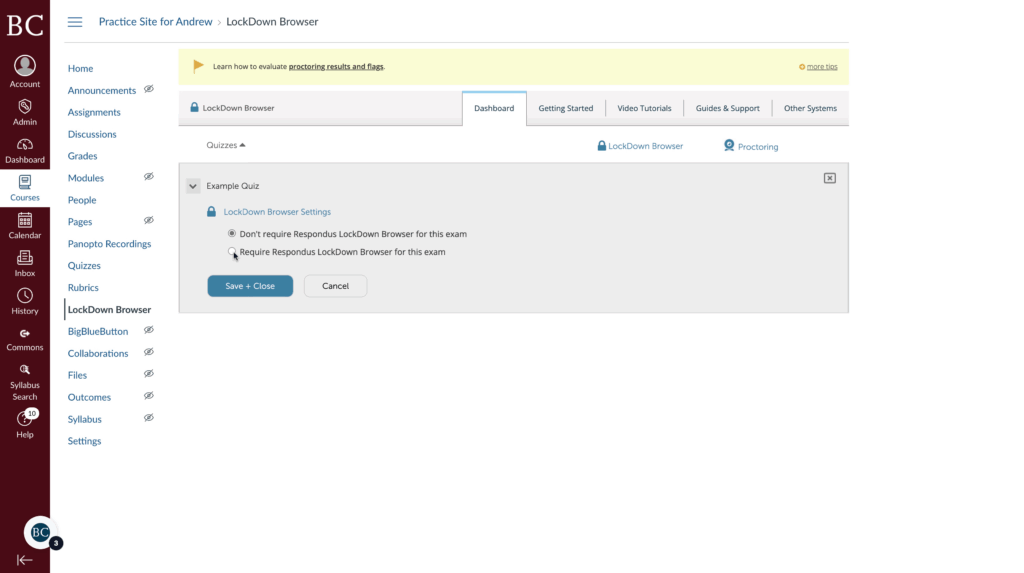
5. Select the option to require LockDown Browser
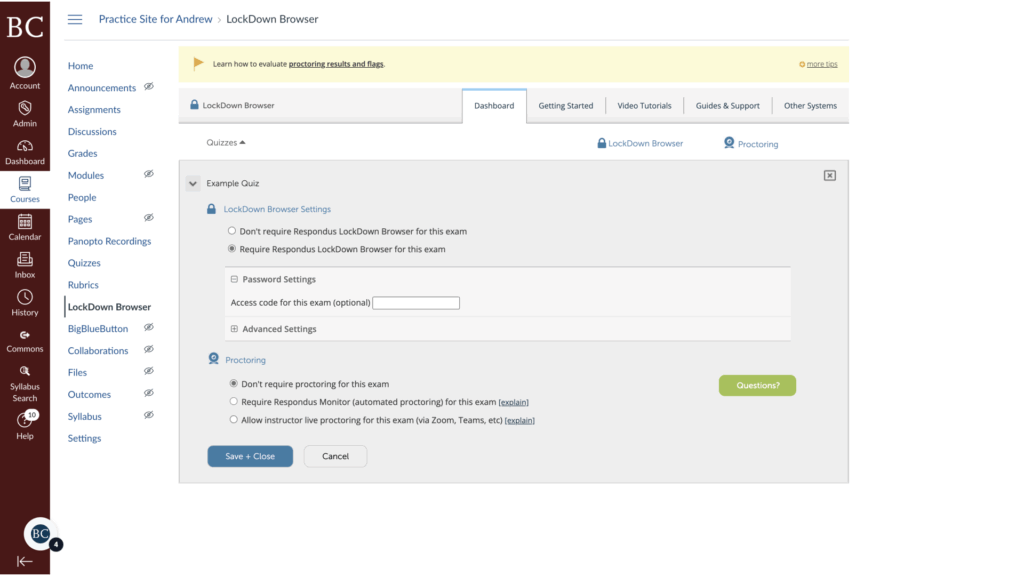
6. Review the option to enable Respondus Monitor
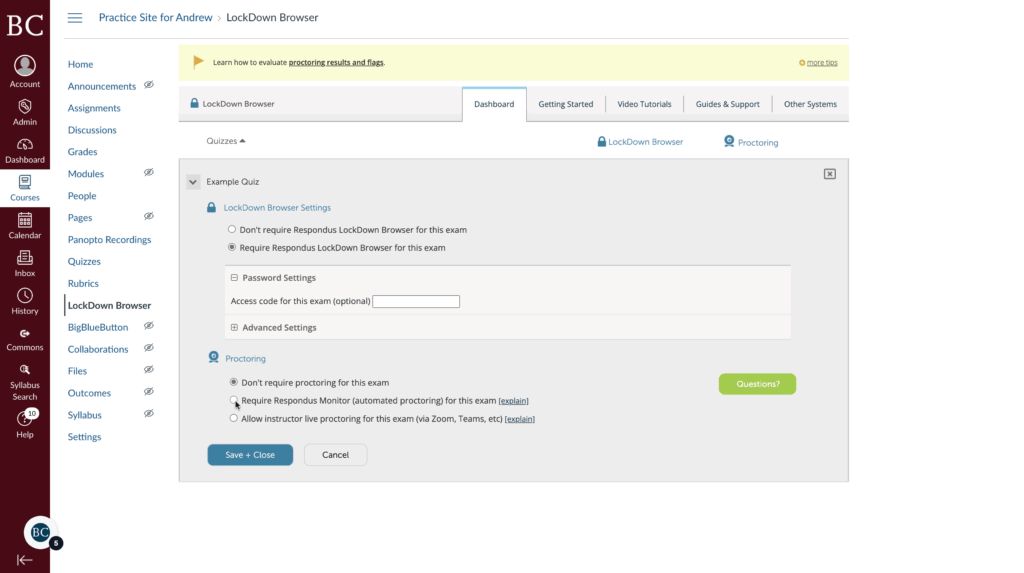
7. [OPTIONAL] Click the option to require Respondus Monitor
8. [OPTIONAL] Click “Continue to Respondus Monitor”
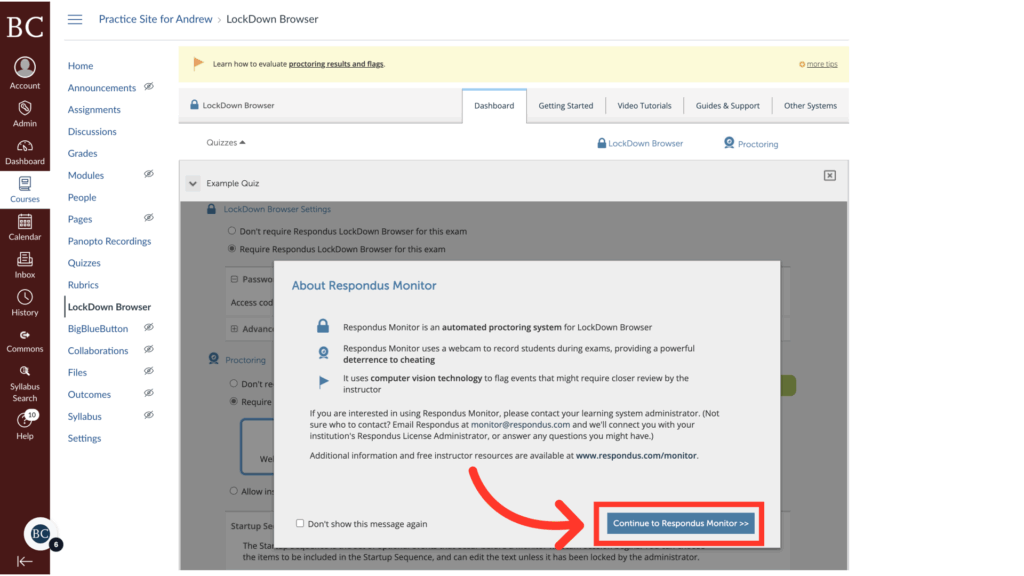
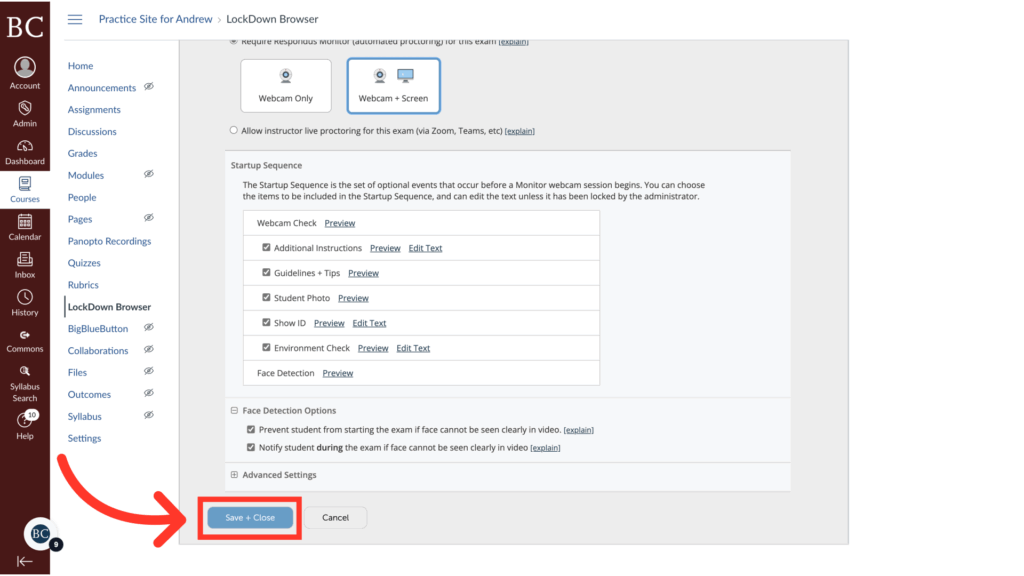
9. [OPTIONAL] Review the Respondus Monitor Settings
You will have the option to record only students’ faces or to record their faces and their screens.
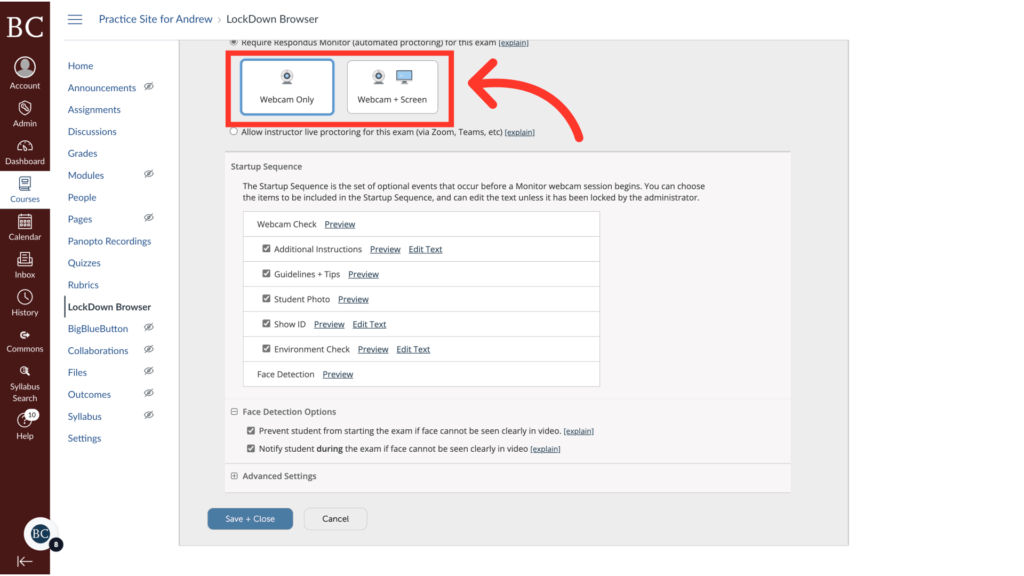
10. Click “Save + Close”
Lockdown Browser and Respondus Monitor (if you selected it) will now be enabled for your Canvas quiz.