DesignPLUS provides a variety of content types you can add to Canvas to enhance the experience of your site.
Note: If you don’t see the DesignPLUS sidebar in your Canvas page, use the keyboard shortcut Control + 1 to enable it. See the Enabling DesignPLUS page for more details.
Video Walkthrough
Step-by-Step Instructions
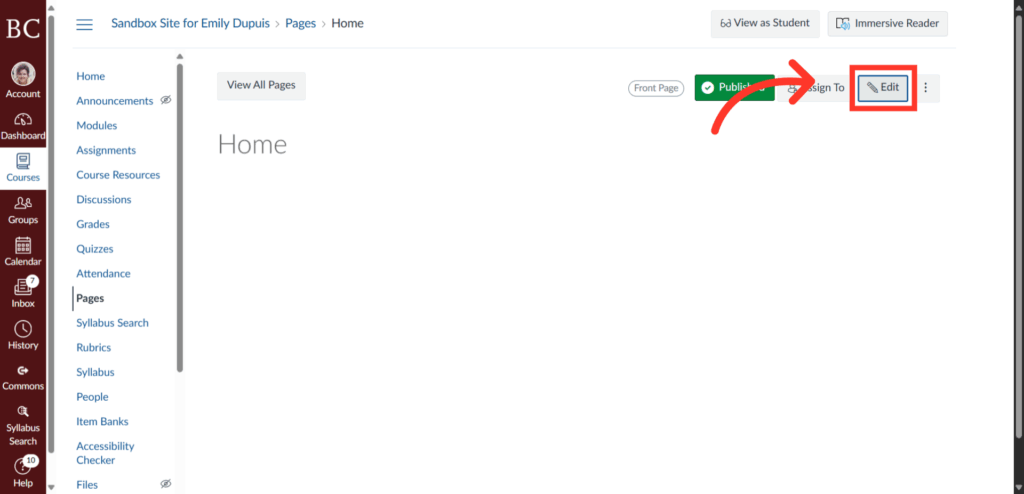
1. Click Edit Button
To begin, click the “edit” button in the top right of your Canvas page.
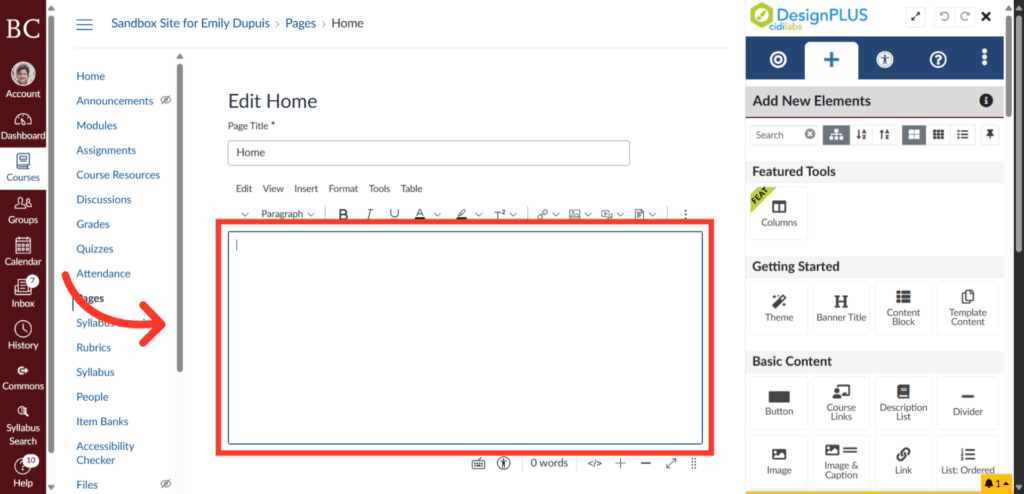
2. Click into the Rich Content Editor
Click into the Rich Content Editor where you would like to place the new element.
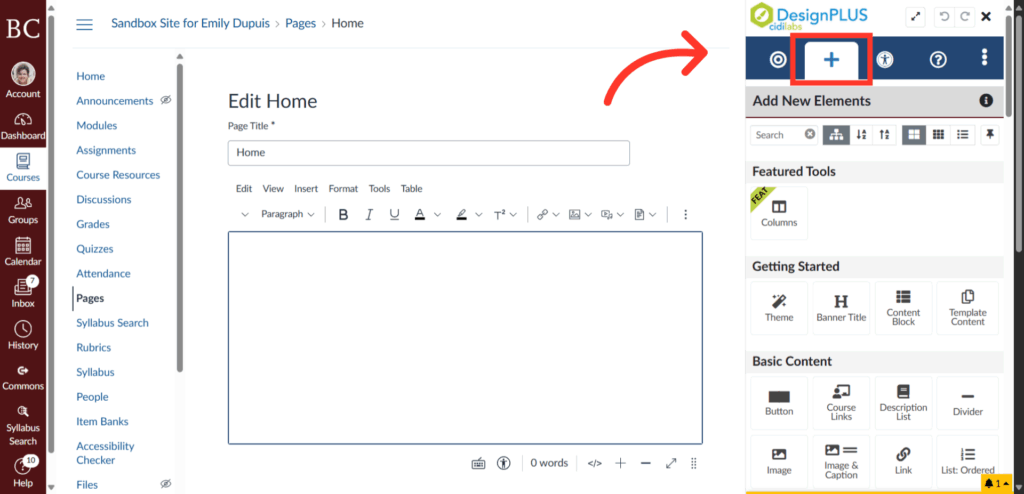
3. Select “Add New Elements”
Make sure you’re in the correct menu on the DesignPLUS toolbar. For adding elements, you must select and work within the indicated menu.
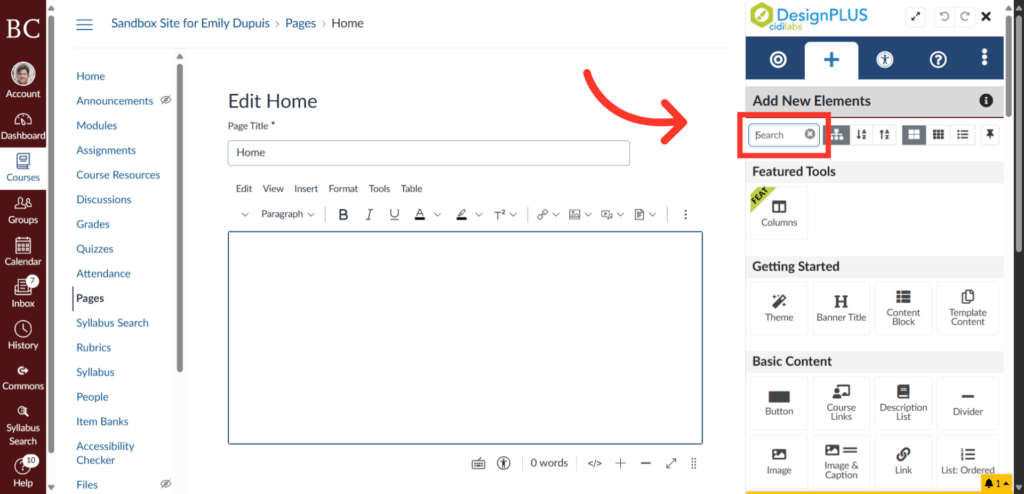
4. Click Search Option
There are two ways to add an element. First, you can look it up on the search bar if you know exactly what you are looking for.
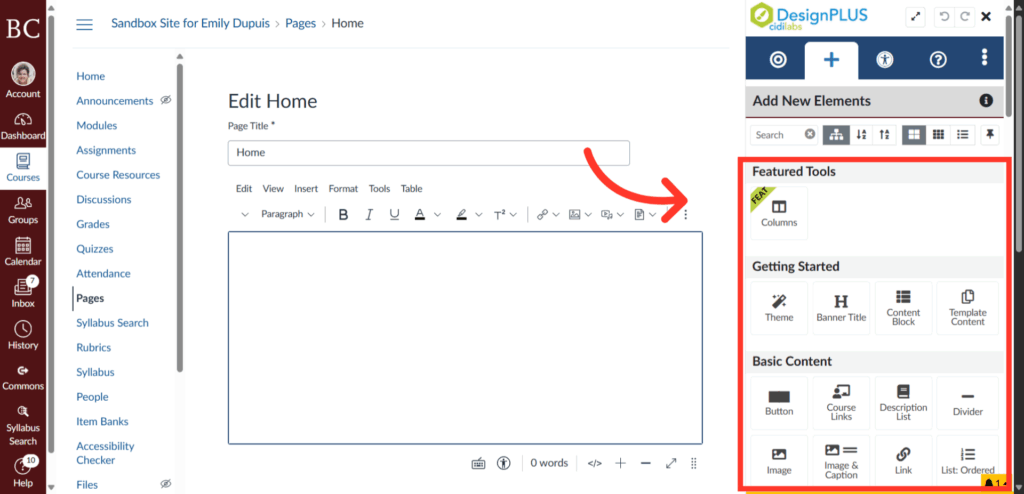
5. Browse the Menu
The second option is to scroll through the Add New Element menu to find what you would like to add.
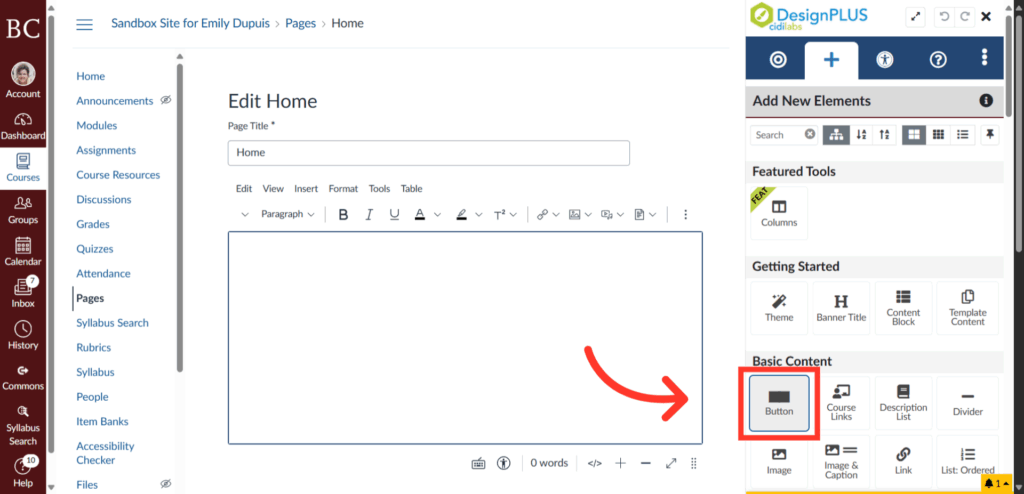
6. Select the Appropriate Element
In this example, we will be adding a button. Simply clicking the “Button” block will automatically add it to the Rich Content Editor.
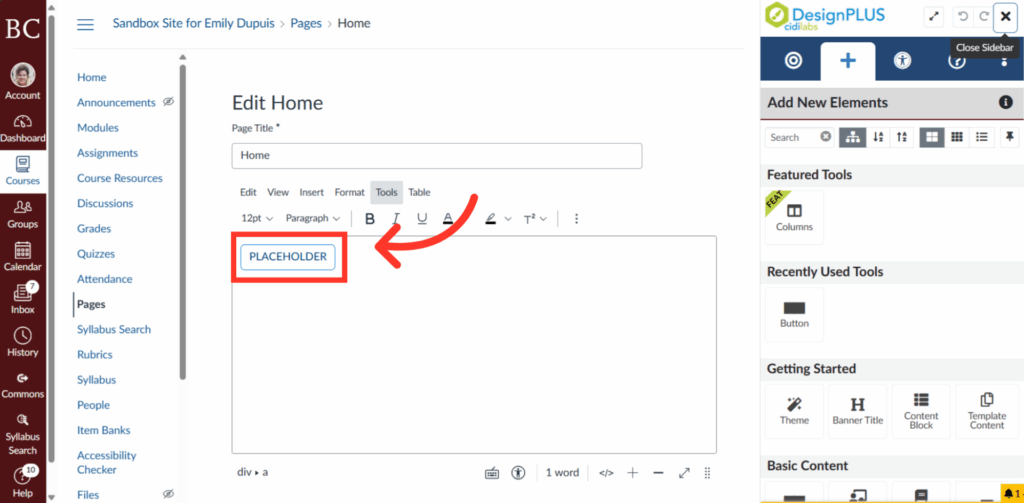
7. Check the Rich Content Editor
Double check to make sure the appropriate element has been added to the Rich Content Editor.
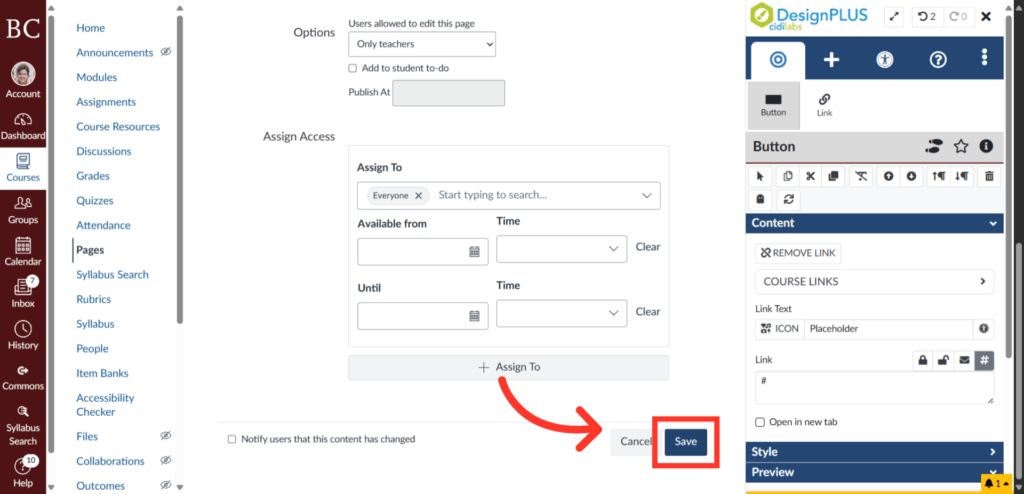
8. Click Save Button
Click the Save button to apply and save the changes made to your design.