Most videos in Panopto have captions automatically available. However, if you have a recording that is missing captions, then you can follow these steps to enable automatic captions.
Video Walkthrough
Step-by-Step Instructions
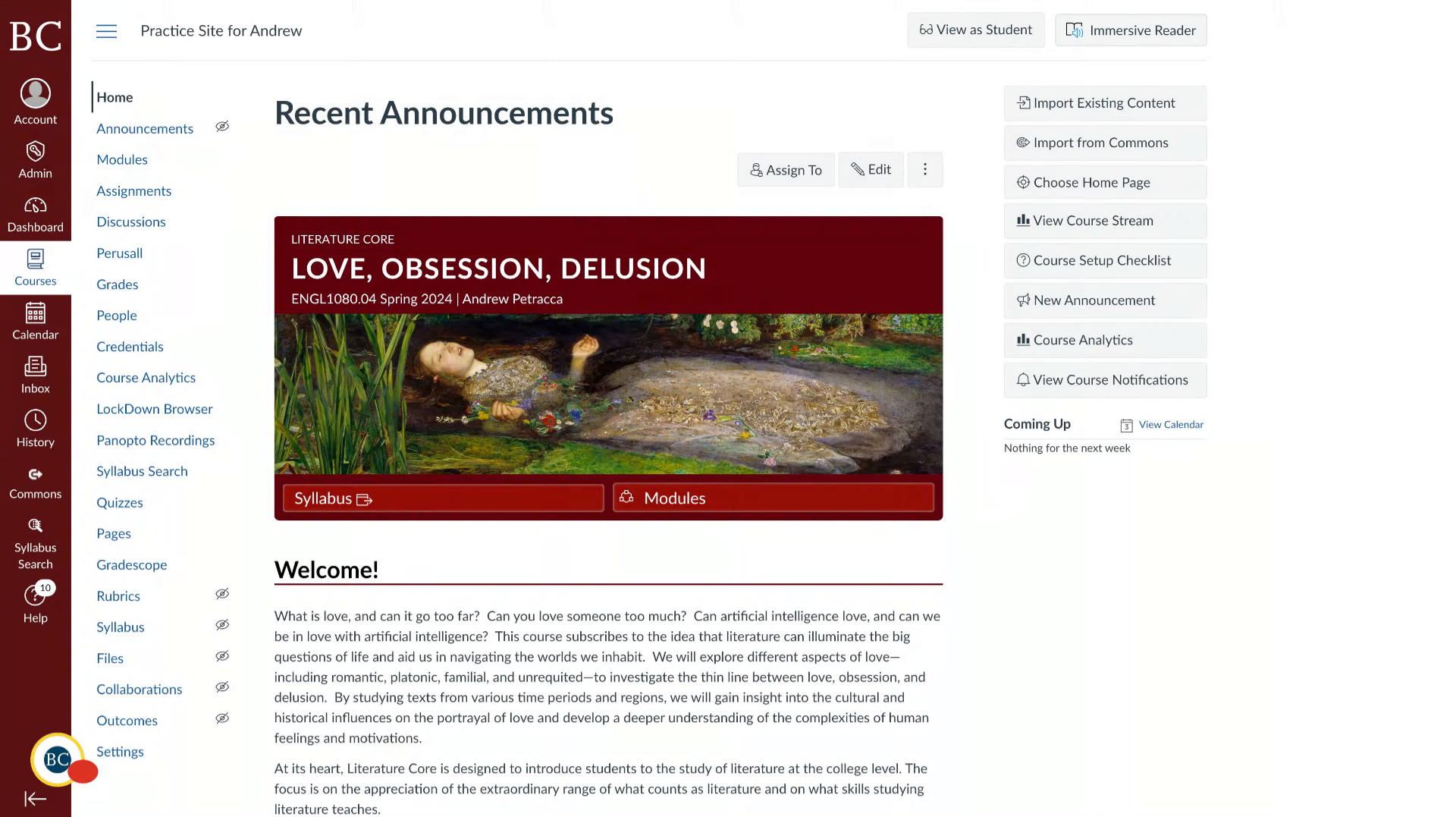
1. Open the Canvas site in which the video is stored
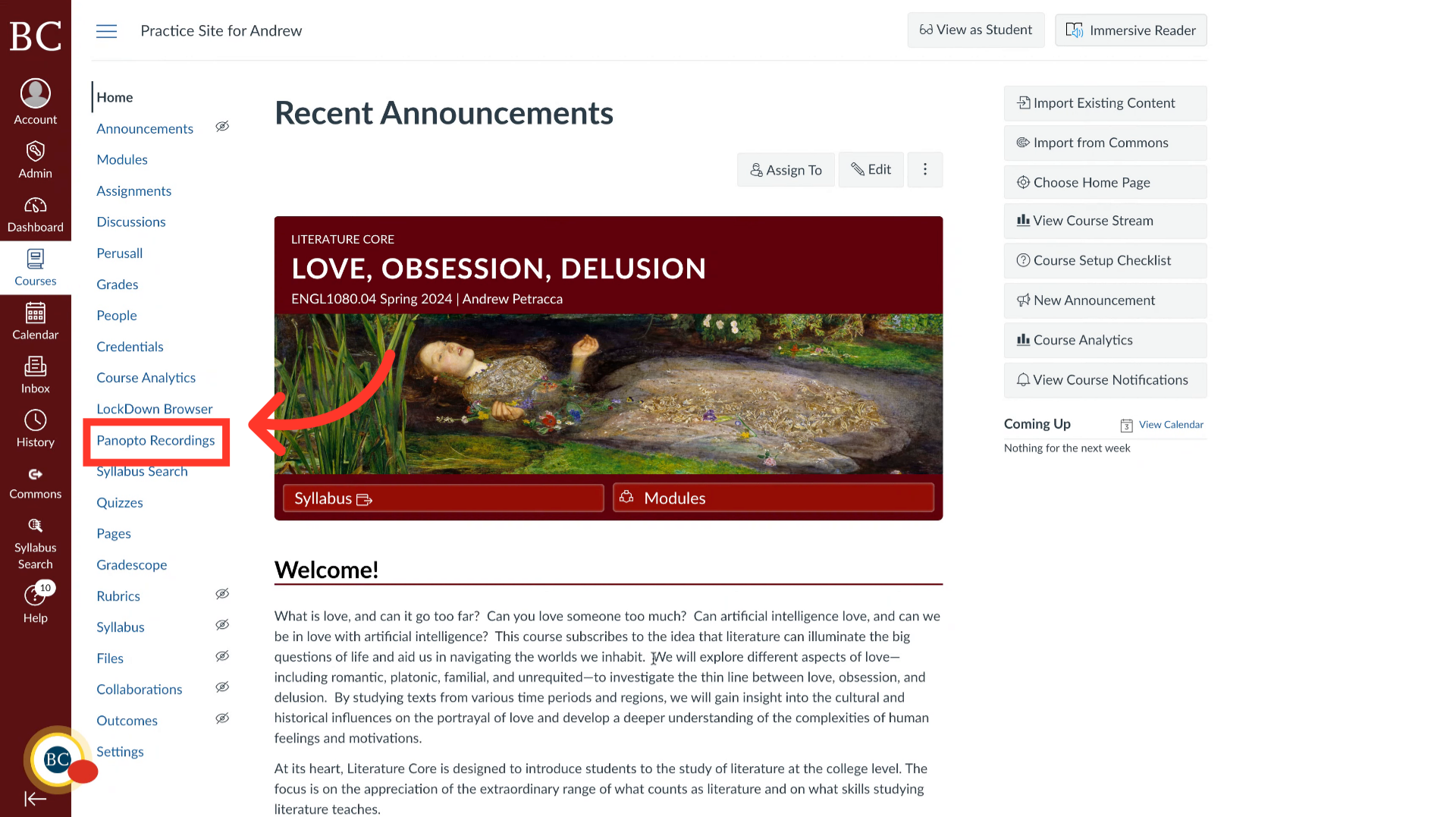
2. Select “Panopto Recordings” from the course navigation menu
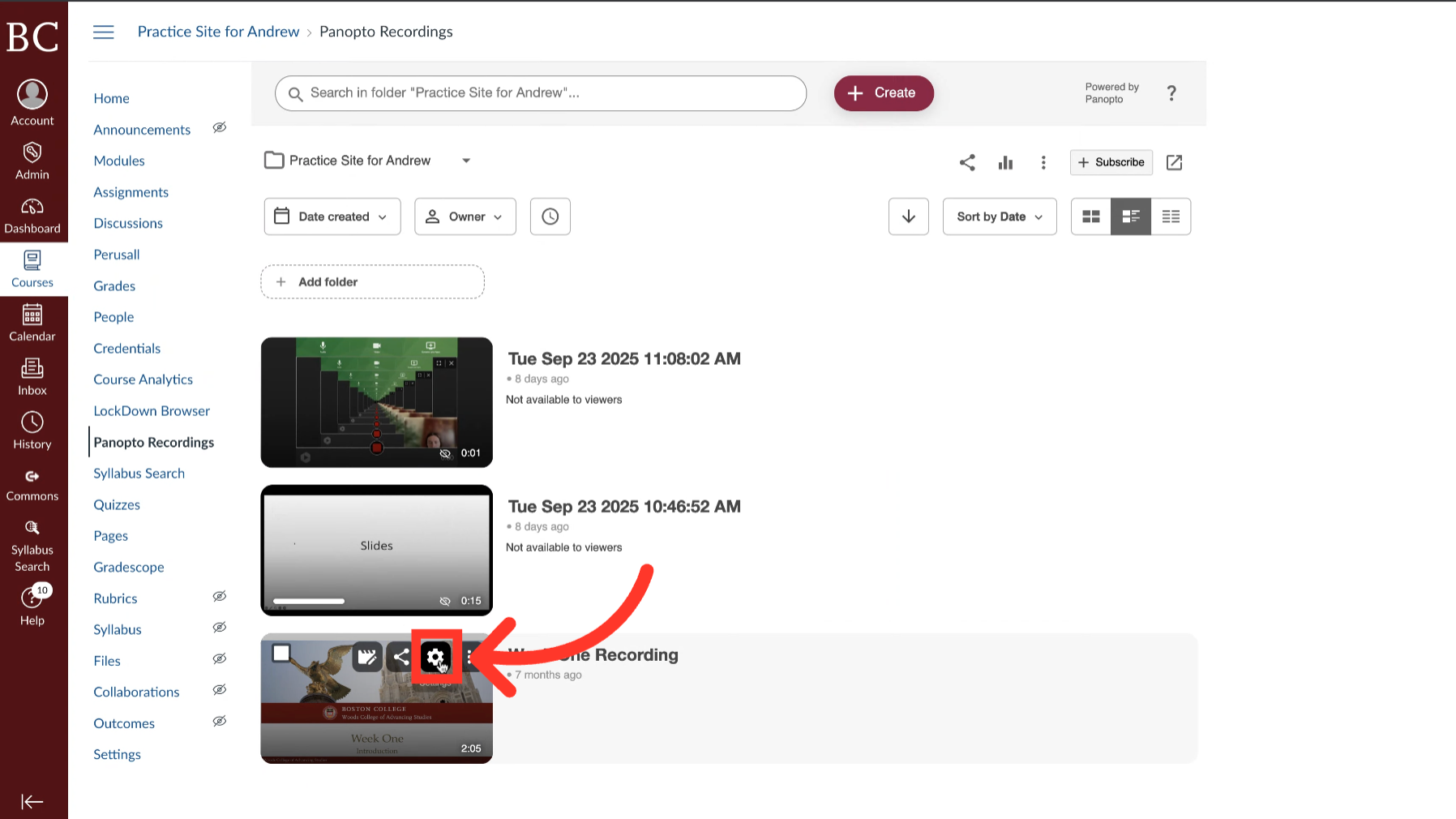
3. Click the gear icon to open the video’s settings
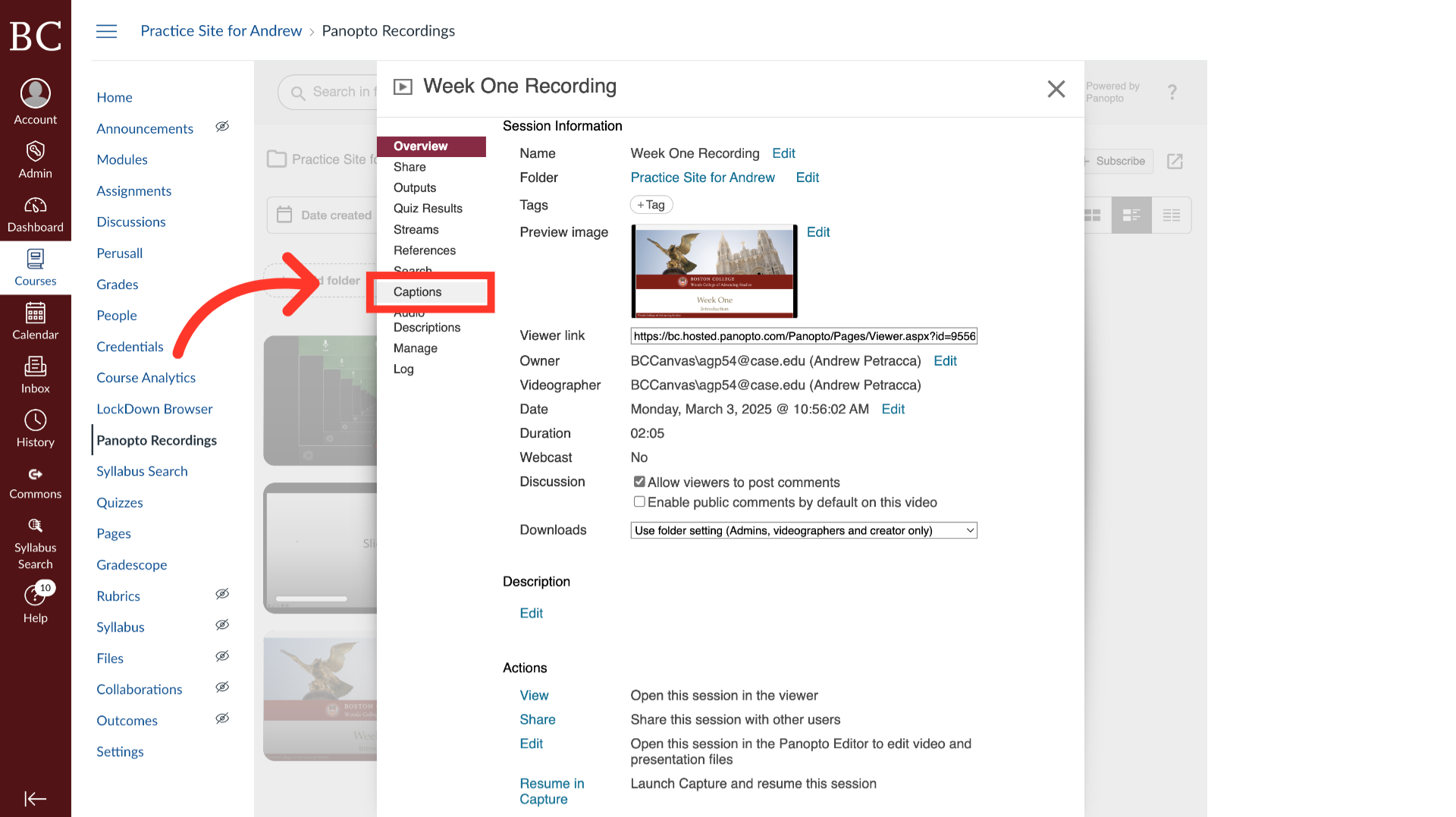
4. Select “Captions”
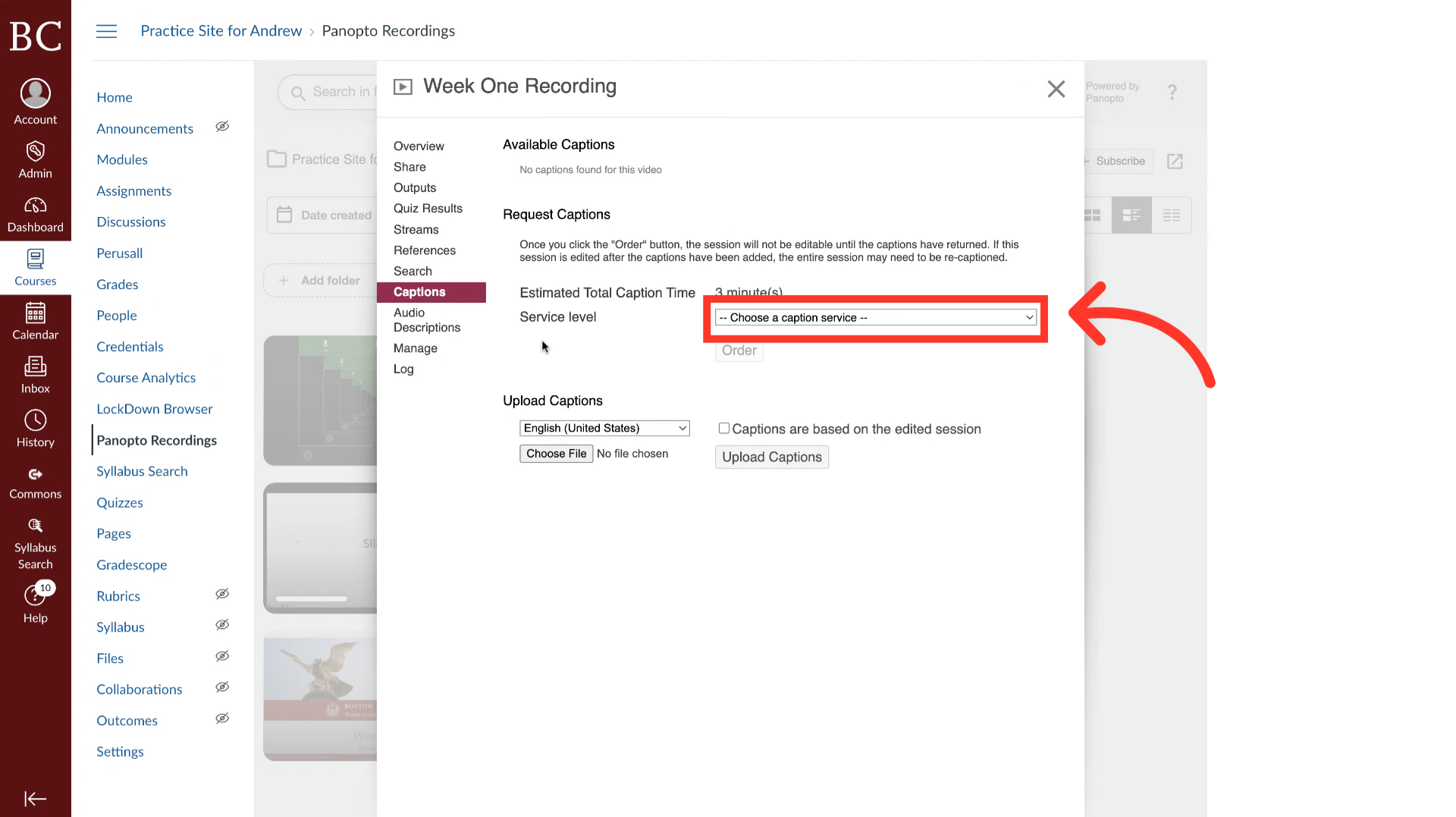
5. Select Automatic Machine Captions
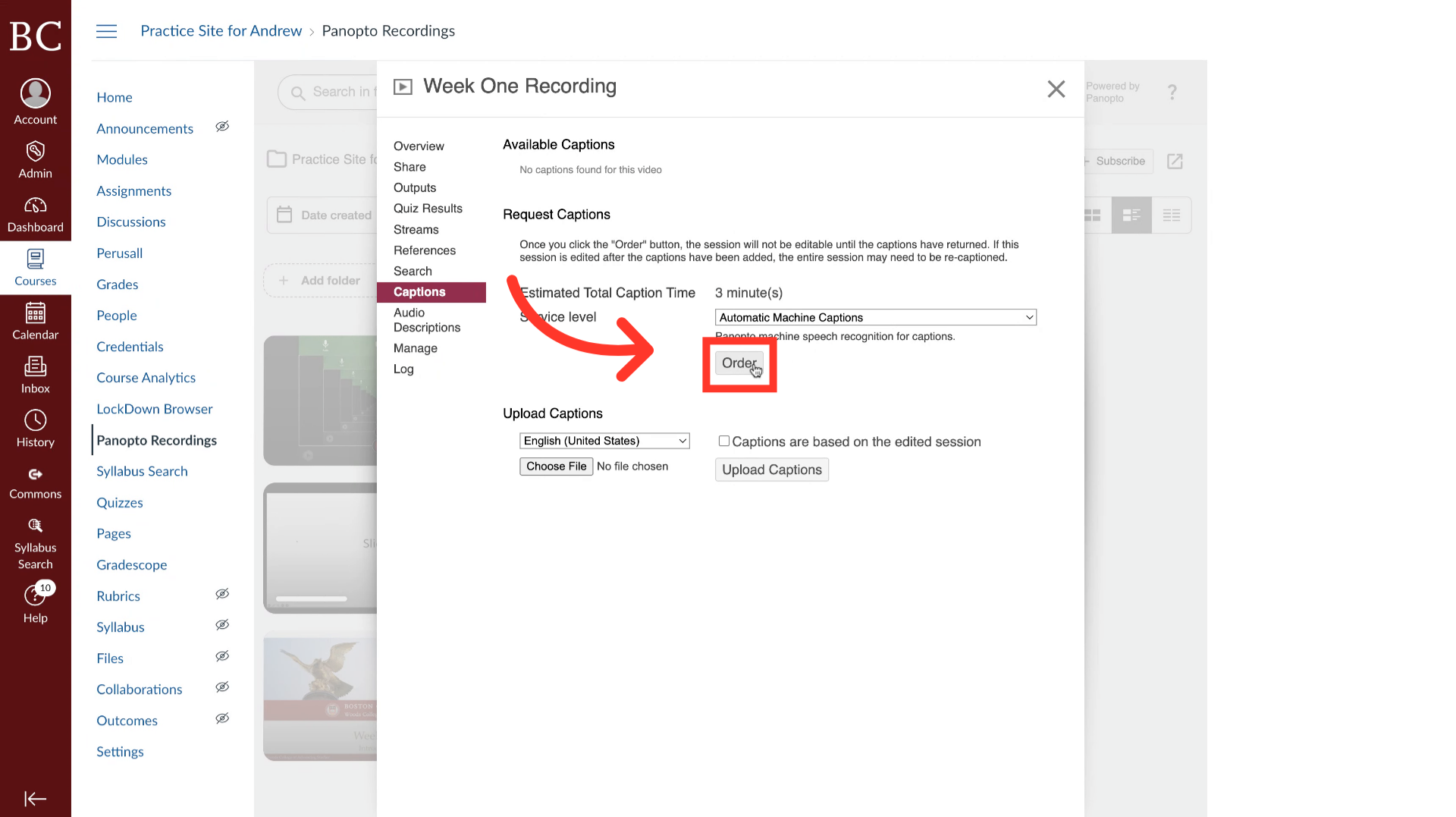
6. Click “Order”
7. Wait for Caption Processing
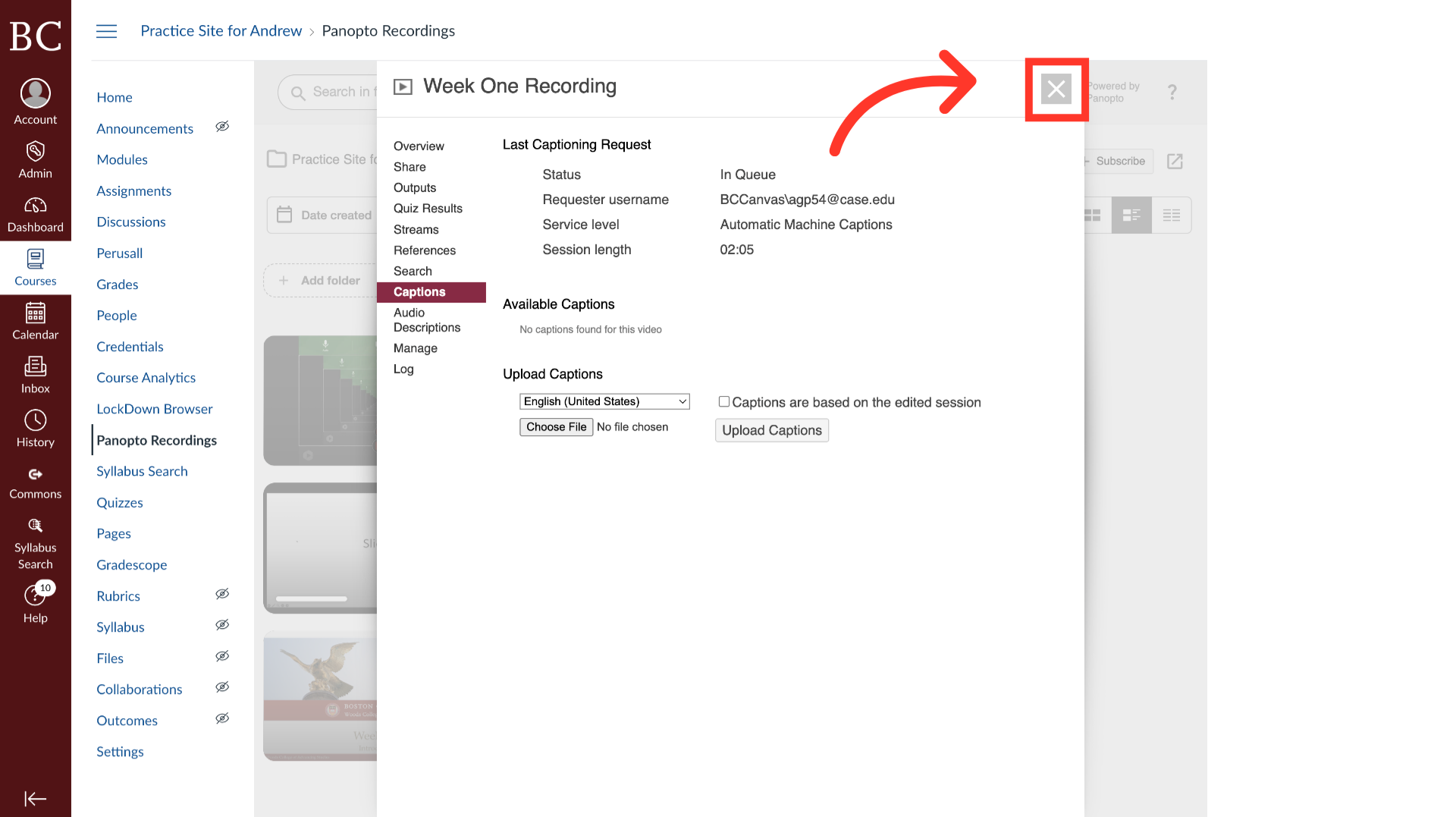
It will take a few minutes for the captions to appear in the video; you can close the settings menu during this time.
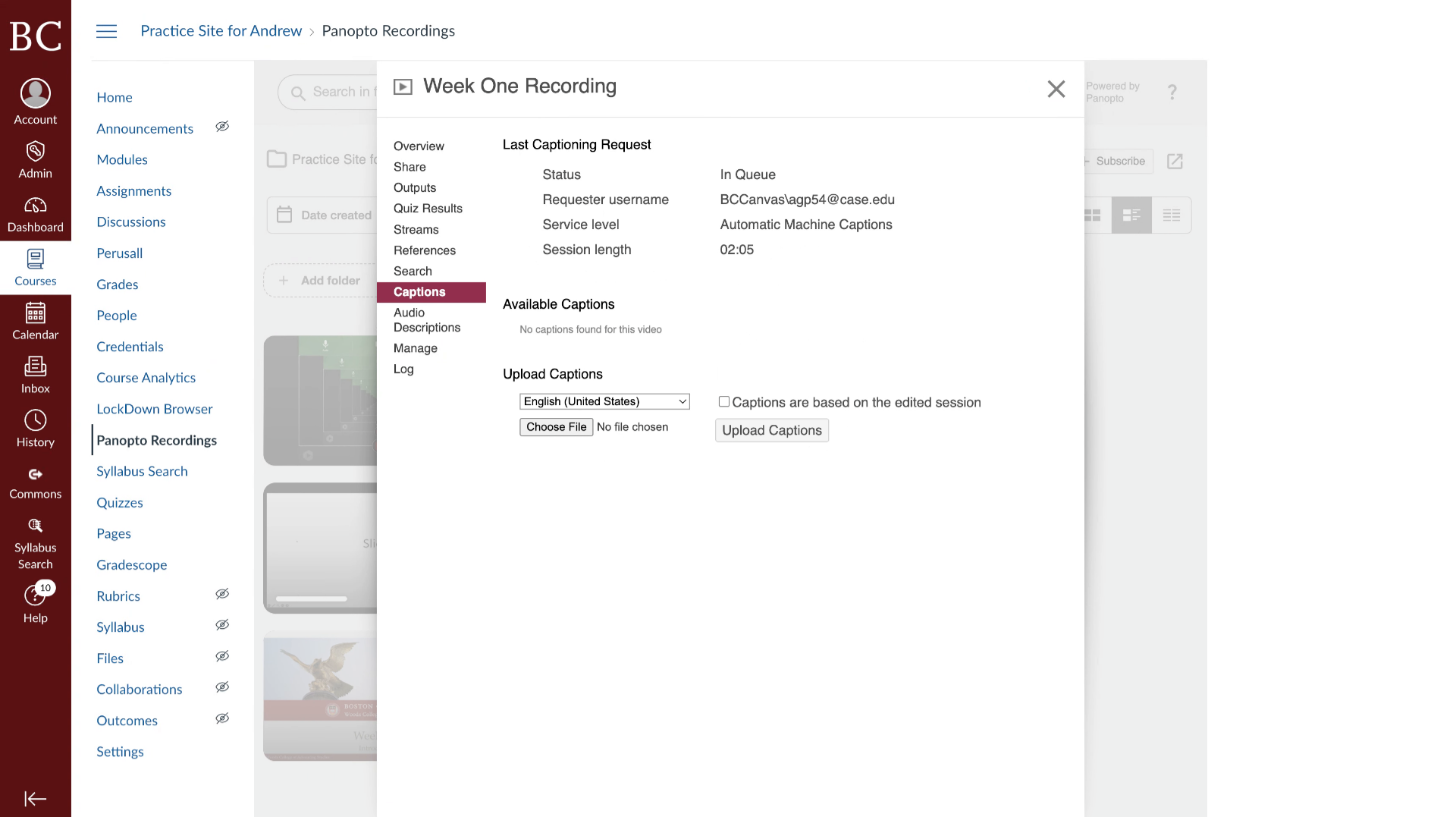
8. Click the X to close the settings menu