

Saving Gemini conversations for later can help provide a reference point for future work.
Pinning a Chat for Easy Reference
Best for: Quick reference and returning to past discussions.
Step-by-Step:
- Look at the top-left corner of the screen.
- Click the Menu Icon ≡ (three horizontal lines).
- Scroll down to the section labeled “Recent”.
- To Pin a Chat: Hover over any chat title. You will see the More Options icon ⁝ (three vertical dots). Click it and select Pin.
Exporting a Specific Response to a Google Doc
Best for: Professional documents, formatting, and email.
Step-by-Step:
- Scroll to the bottom of the specific response you want to save.
- Locate the row of icons below the text.
- Click the three vertical dots icon to show additional options
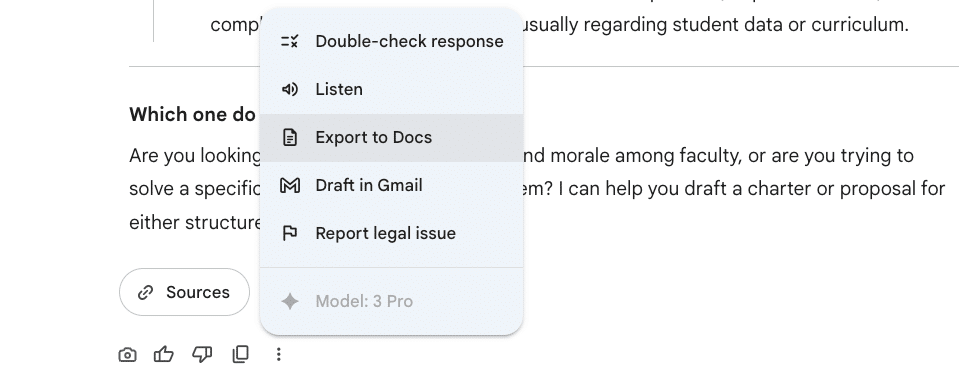
- Select “Export to Docs”:
- A notification will appear at the bottom center: “Document created. Open Docs.”
- Click the “Open Docs” link to view your formatted document immediately.
Saving an Entire Conversation
Option 1: Copying and Pasting into a Word Document
Easy, but formatting might be messy
Step-by-Step:
- Highlight the content of the conversation and copy it
- Create Google doc/Word doc and paste in the contents
Option 2: Saving to Google Docs with Gemini Canvas
Best for: Long-form writing, coding, and iterative editing.
Step-by-Step:
- Enable the Canvas Tool

- Tell Gemin what you’d like to save. For example: “Please give me a verbatim transcript of this entire conversation in Canvas so I can save it as a Google Doc”
- In “Canvas” mode, your text appears in a separate window on the right side.
- Look at the top-right of the Canvas header.

- To Navigate History: Use the back/forward arrows < > to step through your versions.
- To Export: Click the Export icon ↥ at the top of the Canvas pane (not the chat pane).
Option 3: Saving with a Browser Extension: SaveAI (Recommended)
Best for: Power users, dark mode PDFs, and Notion sync.
Installation Visuals:
- Go to saveai.net.
- After installing, look for the Extension Icon (often a puzzle piece 🧩 or the SaveAI logo) in your browser’s top-right toolbar.
Usage Visuals:
- Open any Gemini chat.
- Look for the new buttons added by the extension. Depending on your settings, they usually appear floating in the top-right corner or near the input bar.
- Click “Export”: A pop-up window will appear allowing you to select:
- [ ] Include Images
- [ ] Dark Mode / Light Mode
- Format: PDF, Markdown, or Notion.
Bulk Archiving (Google Takeout)
Best for: Full backups and data compliance.
Step-by-Step:
- Go to takeout.google.com.
- Click the link that says “Deselect all” (otherwise you will download your entire Google life!).
- Scroll down until you see the Gemini logo (the sparkle icon ✨). Check the box next to it.
- Scroll to the very bottom and click Next step.
Click Create export.