

This guide provides an overview of the specialized tools and data integrations available within the Gemini interface.
These features allow you to switch between different modes of creation (like coding or video generation) and input sources (like Drive or NotebookLM).
See Working with Knowledge: Gemini Gems vs. NotebookLM for more about the differences in how Gems and NotebookLM handle external resources.
1. Specialized Tools (Creation & Research)
Accessed via the “Tools” menu or specific prompt triggers.
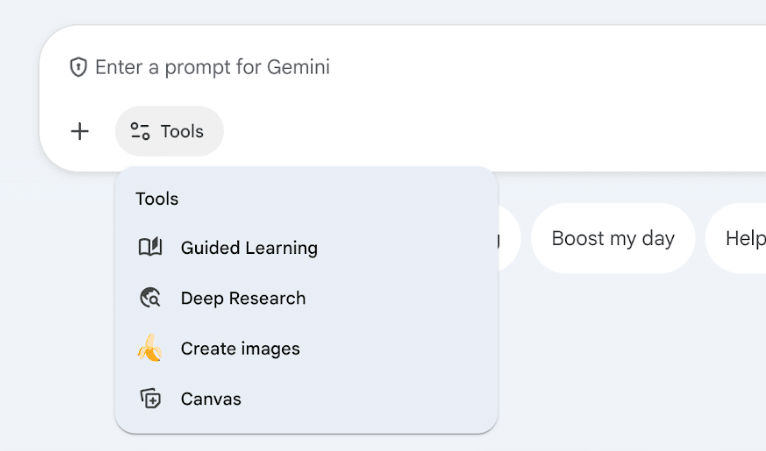
Guided Learning
Turns Gemini into a personalized tutor. Instead of giving direct answers, it breaks complex topics into step-by-step lessons, asks guiding questions to check understanding, and generates quizzes.
- Best for: Students, learning new concepts, and exam preparation.
- Documentation: Guided Learning Overview
Deep Research
An autonomous research agent capable of browsing hundreds of websites to answer complex questions. It creates a plan, gathers info from reliable sources, and synthesizes a comprehensive report.
- Best for: Competitive analysis, technical deep dives, and project planning.
- Documentation: Gemini Deep Research Overview
Create images
Opens the image generation interface (powered by Gemini’s latest image models). It allows for photorealistic image creation, editing via natural language, and accurate text rendering within images.
- Best for: Custom artwork, slide visuals, and creative brainstorming.
- Documentation: Generate & Edit Images
Canvas
A dedicated workspace that opens side-by-side with your chat. It is designed for iterative writing and coding projects, allowing you to highlight and edit specific sections without regenerating the whole response.
- Best for: Writing blog posts, coding apps, debugging, and drafting long documents.
- Documentation: Gemini Canvas Overview
2. Inputs & Integrations (Data Sources)
Accessed via the “+” (Add) menu to bring outside data into your chat.
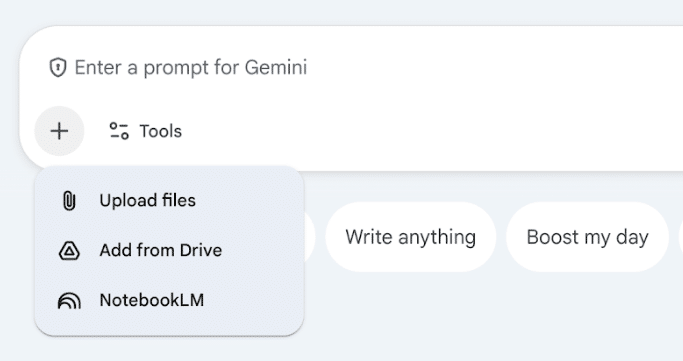
Upload files
Allows you to upload local files directly from your device. Gemini can analyze documents (PDF, DOCX), data spreadsheets (CSV, XLSX), images, and audio/video files.
- Best for: Analyzing local reports, summarizing PDFs, or extracting data from spreadsheets.
- Documentation: Upload & analyze files in Gemini
Add from Drive
Integrates directly with your Google Drive. This allows you to select Google Docs, Sheets, and Slides as “sources” for Gemini to read without needing to download them first.
- Best for: Summarizing existing work docs, finding specific info across multiple Drive files, or analyzing cloud-based spreadsheets.
- Documentation: Use Google Workspace with Gemini
NotebookLM
Connects your NotebookLM projects to Gemini. This allows you to use your curated notebooks (which may contain specific sources, audio overviews, and notes) as the grounded context for your chat.
- Best for: Leveraging deep study guides or research collections you have already built in NotebookLM.
- Documentation: NotebookLM & Gemini Integration
- See Working with Knowledge: Gemini Gems vs. NotebookLM for a comparison between Gems and NotebookLM