

NotebookLM allows you to customize how the AI responds to you, transforming it from a simple question-answer bot into a specific tool—like a study buddy, a critical analyst, or a creative brainstorming partner.
1. How to Find “Configure Chat”
To open the menu shown in your screenshot, follow these steps:
- Open a specific notebook in NotebookLM.
- Look at the Chat Panel (usually in the center or right side of the screen).
- Find the “Configure Chat” icon. It typically looks like sliders or a gear icon located near the top of the chat interface or near the text input box.
- Clicking this icon will open the “Configure Chat” modal.

2. Understanding the Options
The configuration menu is divided into two main sections: Conversation Goal and Response Length
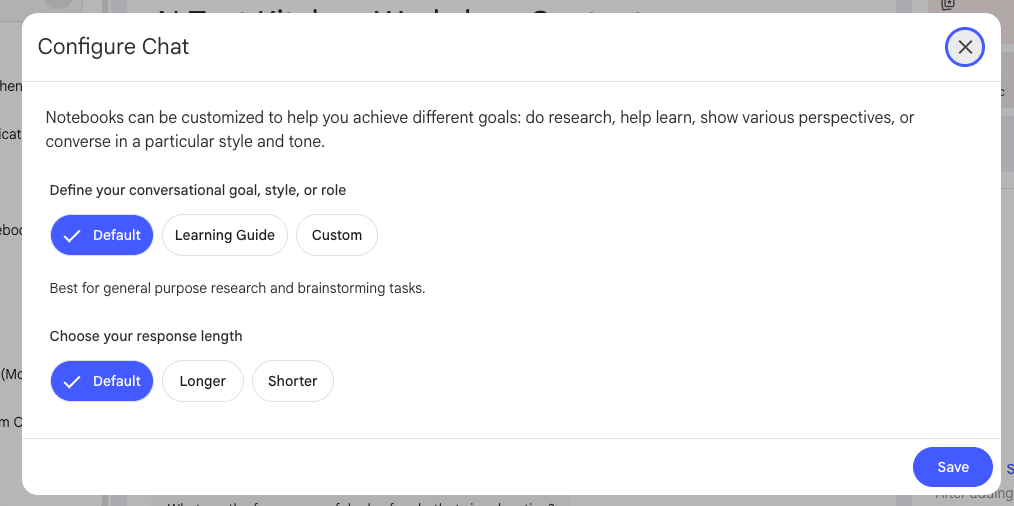
Section A: Define Your Conversational Goal
This setting determines the “personality” and behavior of the AI.
- Default
- What it does: This is the standard setting. The AI acts as a neutral, helpful assistant focused on answering your questions based strictly on your uploaded sources.
- Best for: General research, fact-checking, and quick summaries.
- Learning Guide
- What it does: Instead of just giving you the answer, the AI shifts into “tutor mode.” It may ask you probing questions, help you break down complex concepts step-by-step, or quiz you on the material.
- Best for: Students studying for exams, or anyone trying to deeply understand a new topic rather than just getting a summary.
- Custom
- What it does: This is the most powerful option. It allows you to type specific instructions (a “system prompt”) to tell the AI exactly who to be or how to act.
- Examples:
- “Act as a strict editor and critique my grammar.”
- “Explain this to me like I’m 5 years old.”
- “Act as a devil’s advocate and argue against the points in my source documents.”
- Best for: specialized tasks, role-playing scenarios, or formatting output in a very specific way (e.g., “Always answer in bullet points”).
Section B: Choose Your Response Length
This setting controls how verbose the AI is.
- Default: A balanced response length—usually a paragraph or two depending on the complexity of the question.
- Longer: Forces the AI to be more detailed, providing comprehensive explanations, nuance, and potentially more quotes from your sources. Good for drafting content or deep dives.
- Shorter: Forces the AI to be concise. It will cut out fluff and give you direct answers. Good for quick facts or high-level overviews.
Quick Summary Table
| Feature | Use “Default” When… | Use “Specialized” When… |
| Style | You just need facts. | You want to learn (Learning Guide) or need a specific persona (Custom). |
| Length | You want a standard answer. | You are writing an essay (Longer) or need a quick definition (Shorter). |