Enabling Gradescope in Your Canvas Site

You can enable Gradescope in your Canvas site as a tool to administer and grade assessments. For example, Gradescope can be used to grade paper bubblesheets online.

Video Walkthrough

Step-by-Step Instructions

1. Open the Canvas site to which you’d like to enable Gradescope
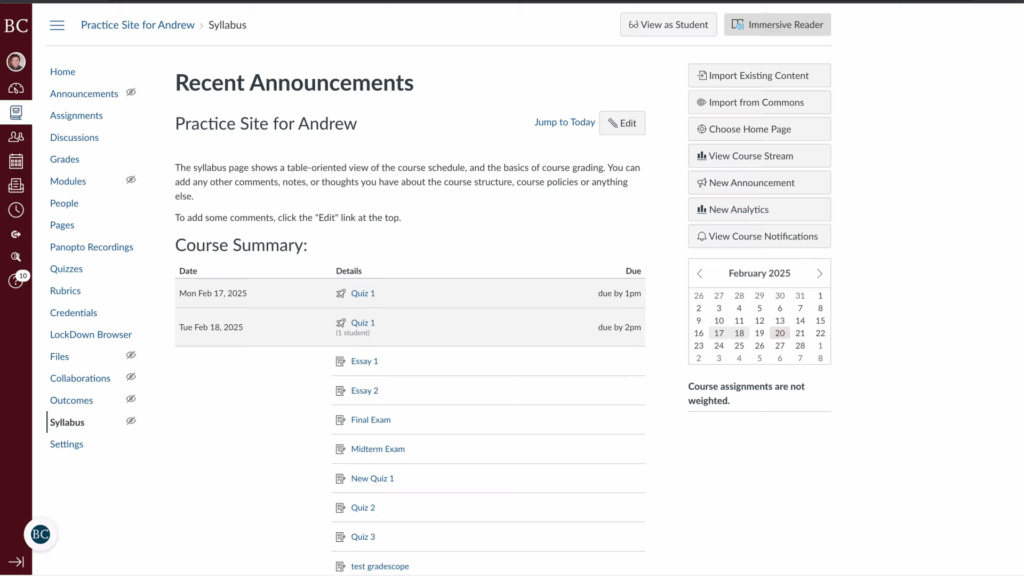
A course management dashboard shows recent announcements and a course summary with assignments and due dates. Navigation links are on the left, options on the right, and a calendar displays February 2025.

2. Click “Settings” on the course navigation menu
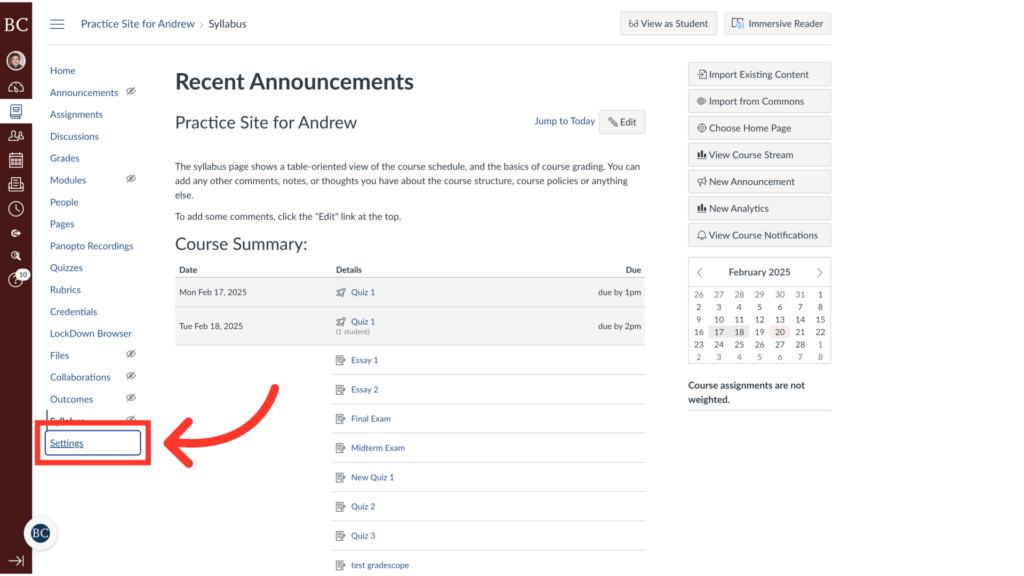
A screenshot of a course page titled Practice Site for Andrew shows recent announcements, a summary of assignments, a calendar, and navigation links. A large red arrow points to the Settings link in the left sidebar menu.

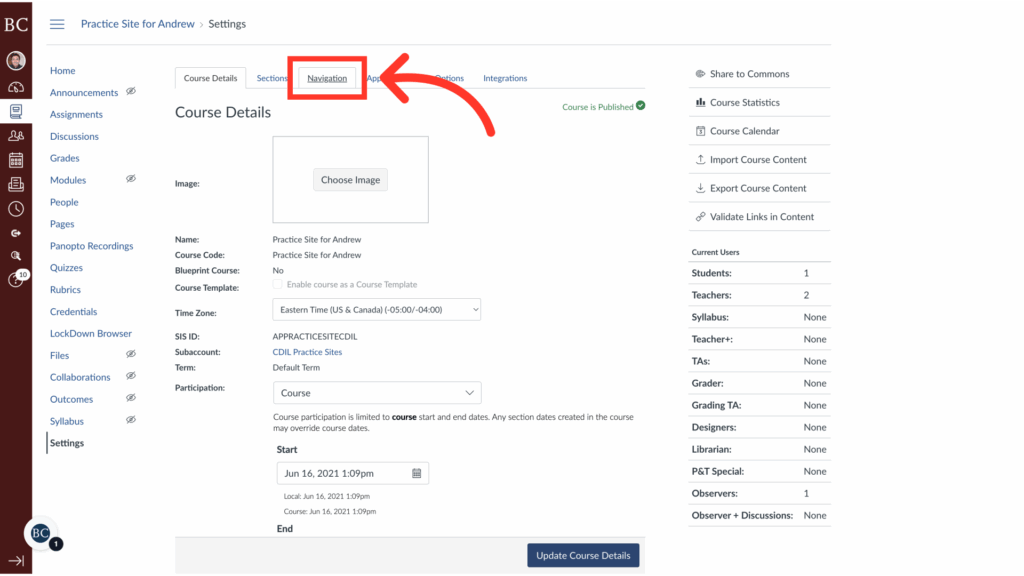
3. Click “Navigation”

Screenshot of a course settings page with a red arrow pointing to the Navigation tab. The page displays course details like name, course code, time zone, and start/end dates, with options to update or publish the course.

4. Scroll down until you see Gradescope and click the kebab menu
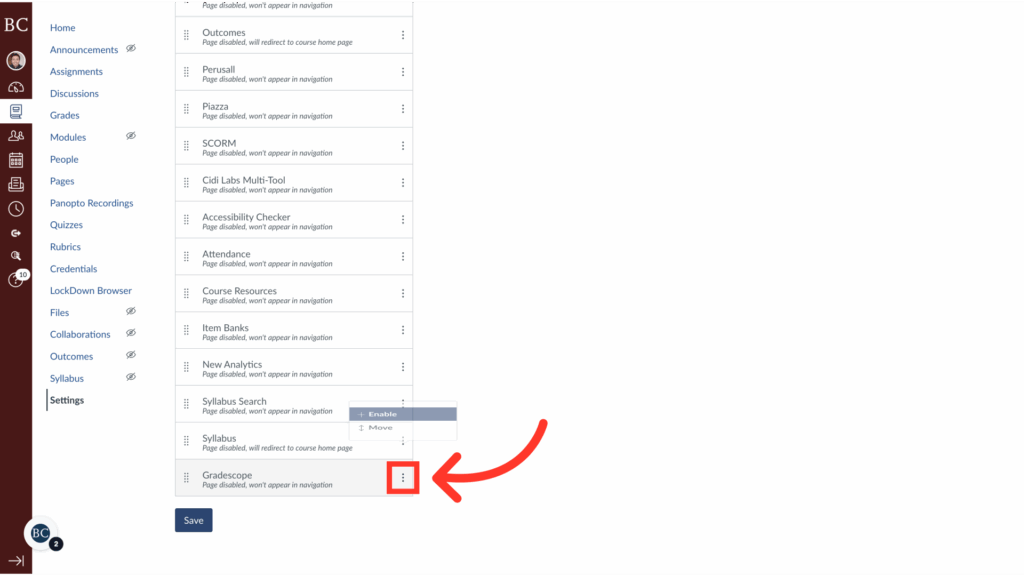
A computer screen shows a Canvas course settings page. A red arrow points to a crossed-out eye icon next to Gradecopier in the course navigation menu, indicating it is hidden from students.

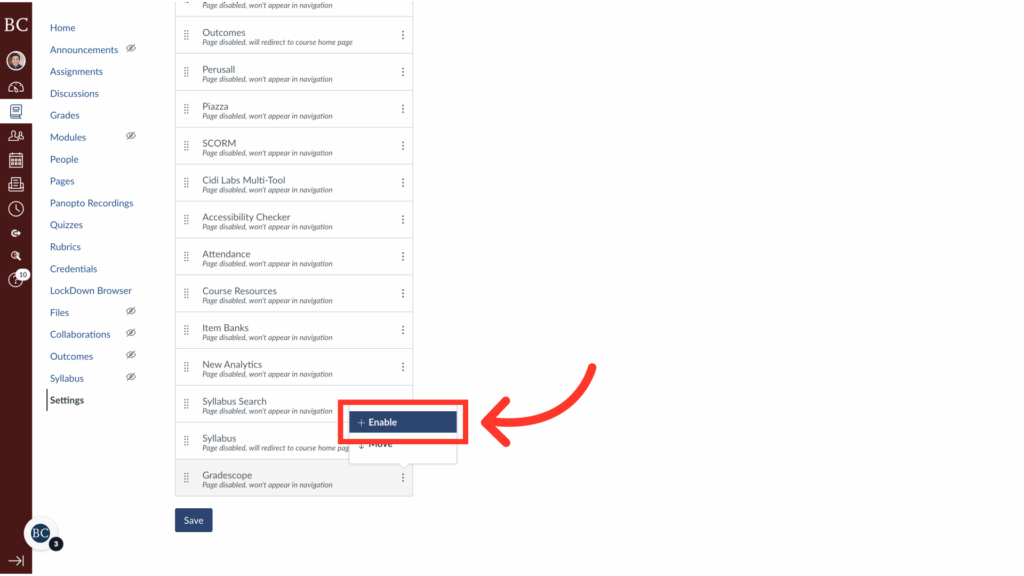
5. Click “+Enable”

A computer screen displays an online course settings menu with a red arrow pointing to a highlighted Enable button next to Syllabus Search. Other tools and options are listed in the menu.

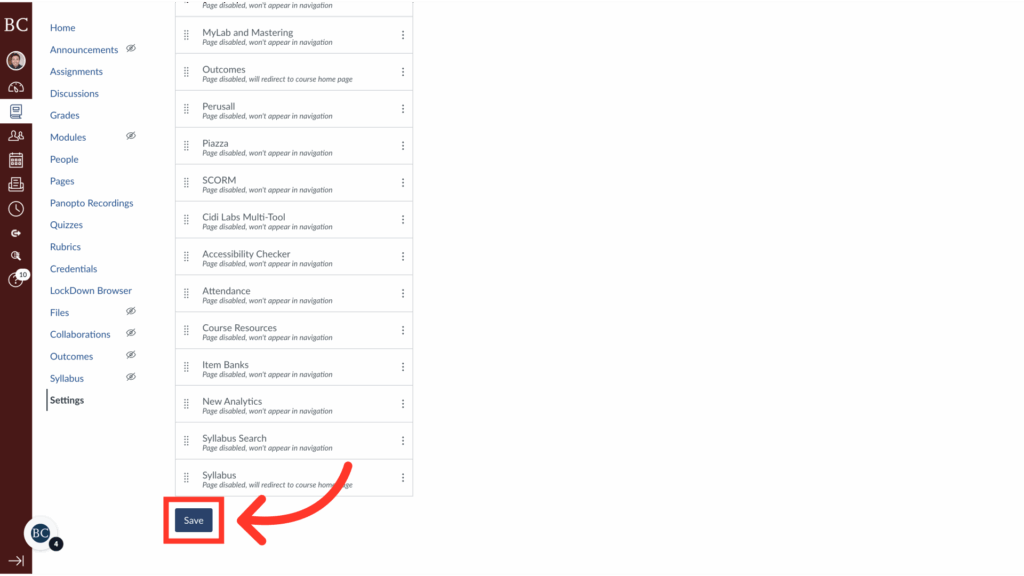
6. Click “Save”

A screenshot of a Canvas course settings page shows a red arrow pointing to a blue Save button at the bottom left, with the course navigation menu displayed on the left side.

7. Click “Gradescope” on the course navigation menu
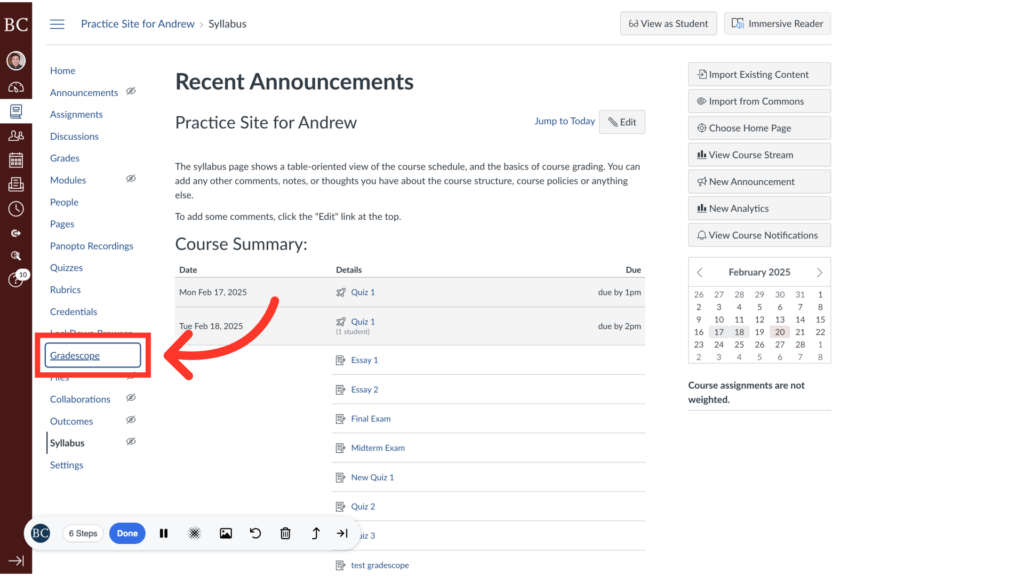
A screenshot of an online course page shows the “Gradebook” link highlighted in the left menu with a red circle and arrow. The main area displays recent announcements and a course summary with assignments and due dates.

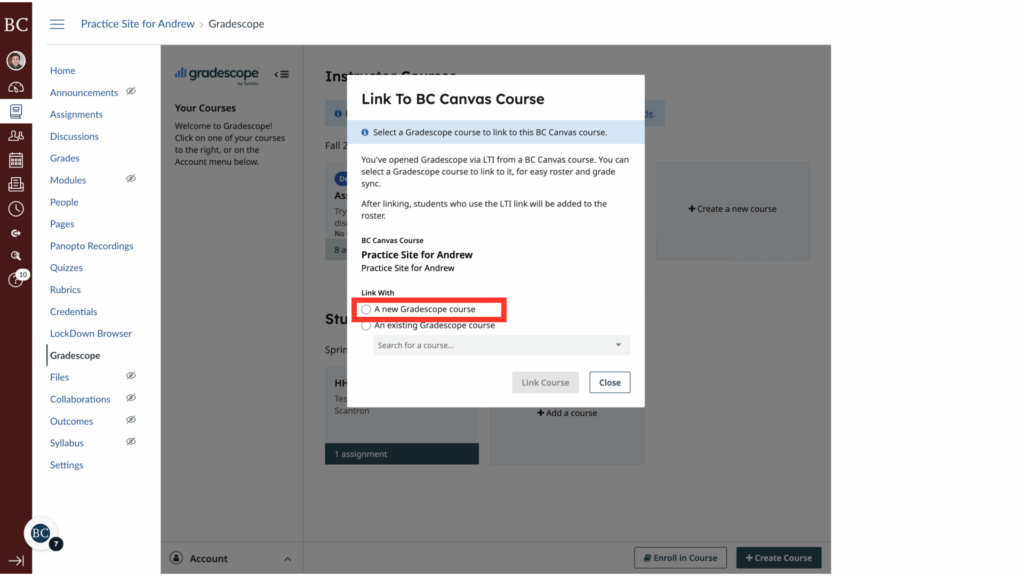
8. Select “A new Gradescope course”

A pop-up window titled Link to BC Canvas Course appears over a course page, highlighting the option A new Gradescope course with a red box. The window contains instructions and a “Link Course” button.
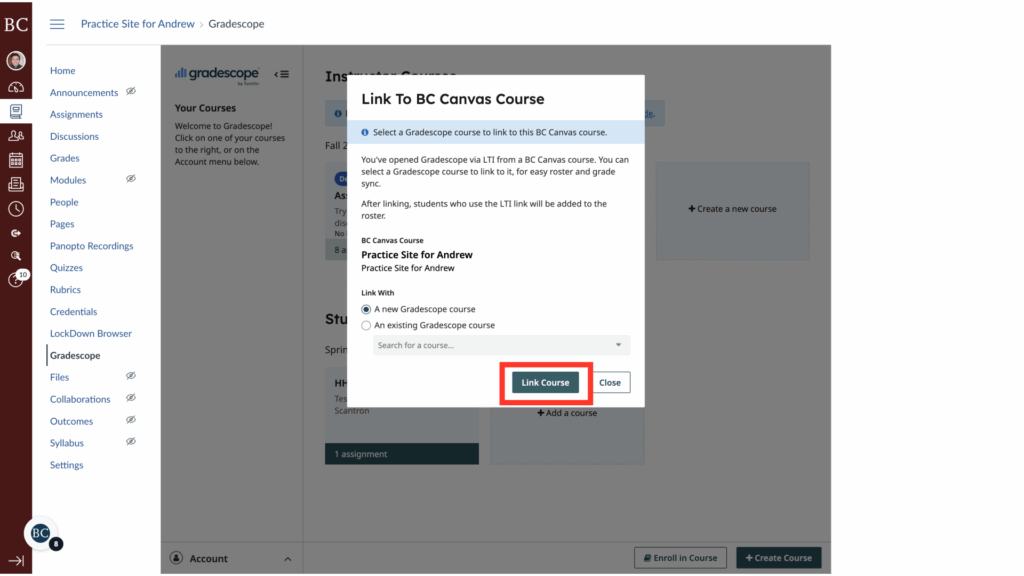
A pop-up window titled Link To BC Canvas Course appears over a Canvas dashboard. The Link Course button is highlighted in red at the bottom of the window. The background shows course tools and navigation.

10. Scroll to the bottom and click “Update Course”

You are now ready to begin creating assignments in Gradescope.
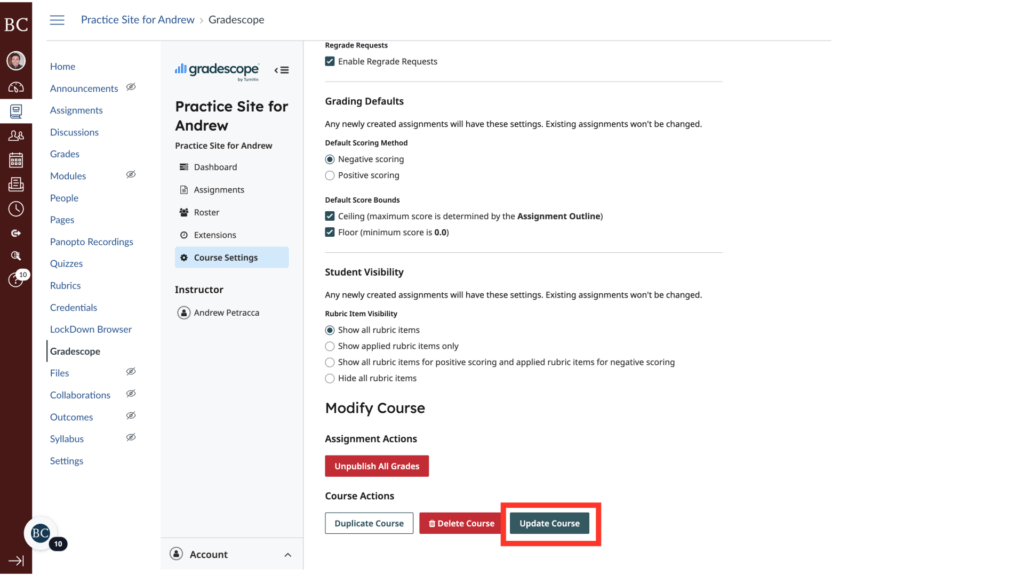
A settings page in Gradescope shows options for grading defaults, student visibility, and course modification. The Update Course button at the bottom is highlighted with a red box.

Last Updated