

Changing a Theme for a Single Page

If your Canvas content has DesignPLUS theme applied, you can change it by following these instructions.

Video Walkthrough

Step-by-Step Instructions

1. Click the Edit Button

To begin, click on the editing button in the upper right corner.
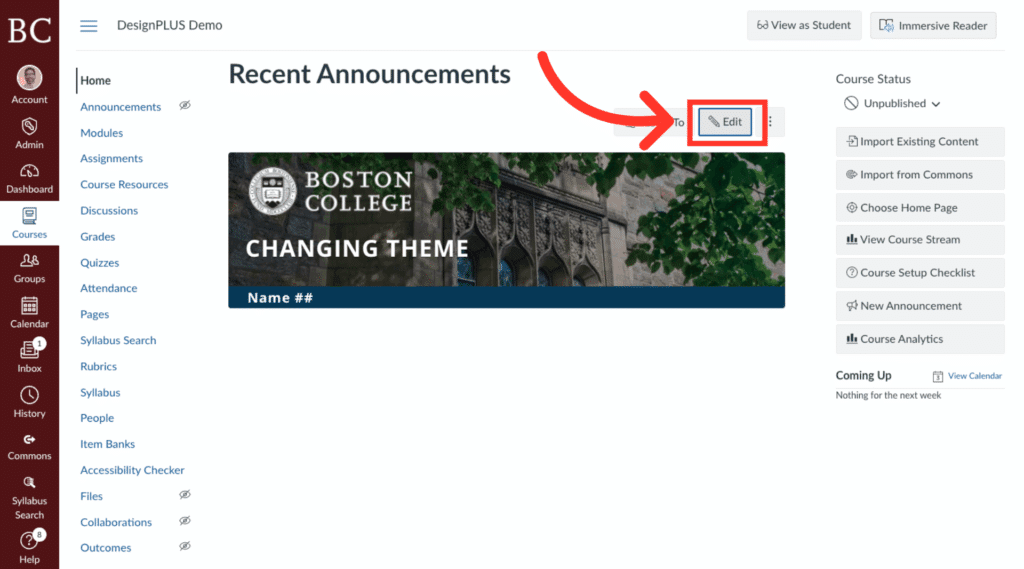
Screenshot of a Canvas course page titled Recent Announcements. A large red arrow points to a highlighted Edit button above a Boston College banner. The left shows a navigation menu; the right shows course status options.

2. Ensure the Edit Tab is Open

Double check to make sure you are in the editing tab, as indicated.
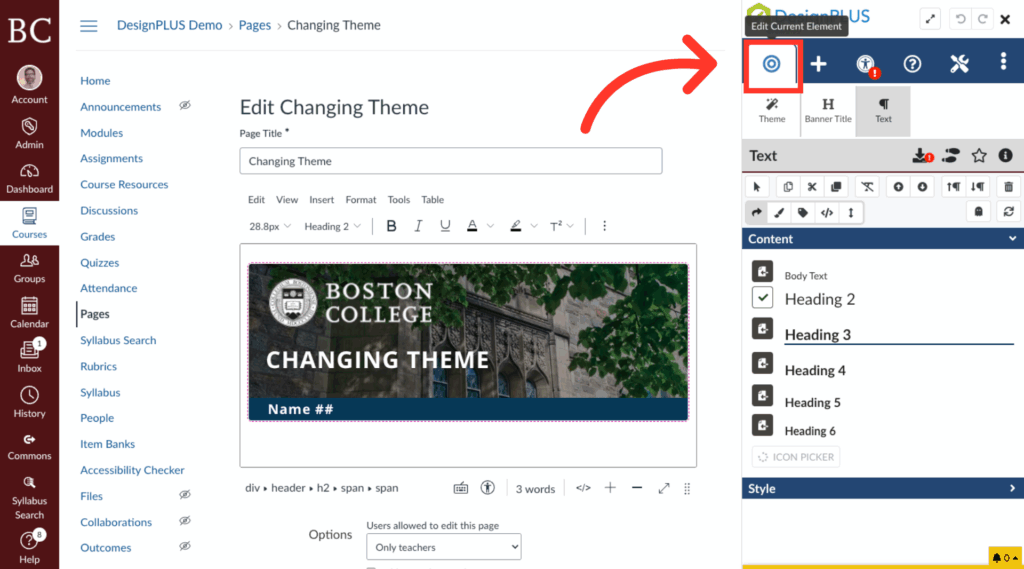
A screenshot of a DesignPLUS page editor. An arrow points to the DesignPLUS Edit Current Element button in the top toolbar. The page displays a Boston College banner and text editing options on the right.

3. Open Theme Menu

Click on the “Theme” button to open the options for theming.
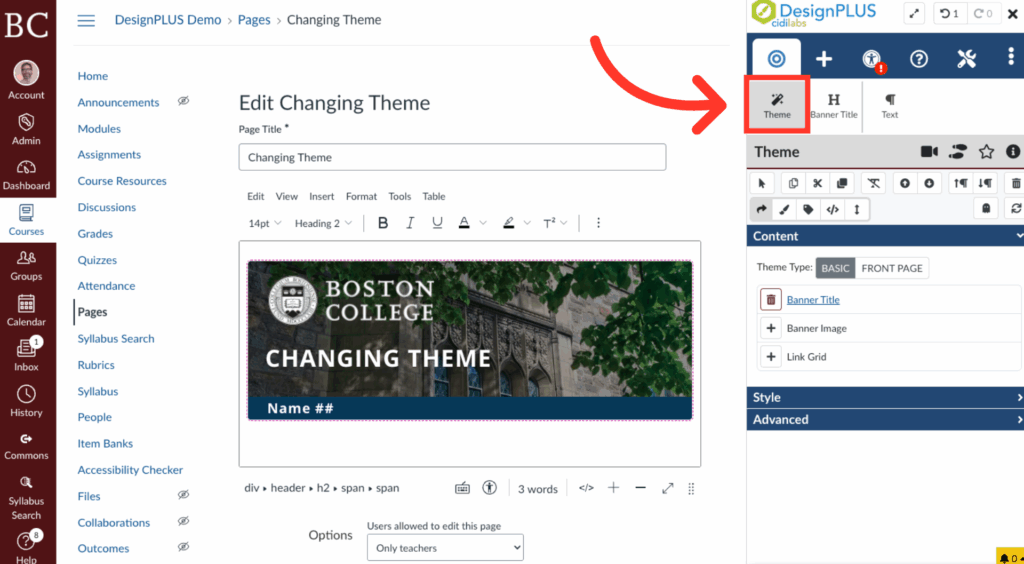
Screenshot of a DesignPLUS theme editor in Canvas LMS, showing a Boston College page. A red arrow points to the DesignPLUS tool icon in the sidebar menu above the theme settings panel on the right.

4. Open Style Panel

Click “Style” in the Theme menu to show all theme options.
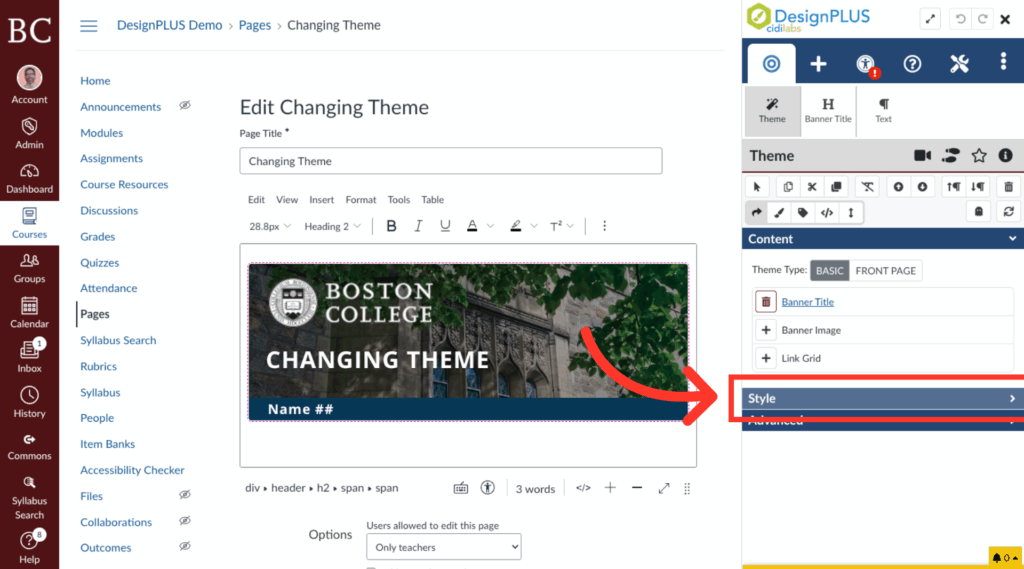
A screenshot of a webpage editor for Boston College showing a header image and the words “Changing Theme.” A red arrow points to the “Style” section in the theme editing panel on the right.

5. Select New Theme

From the menu, look through the BC General Themes list and BC School Themes list to select the relevant theme. Be sure to choose a home page or module page template based on the page type you are editing.
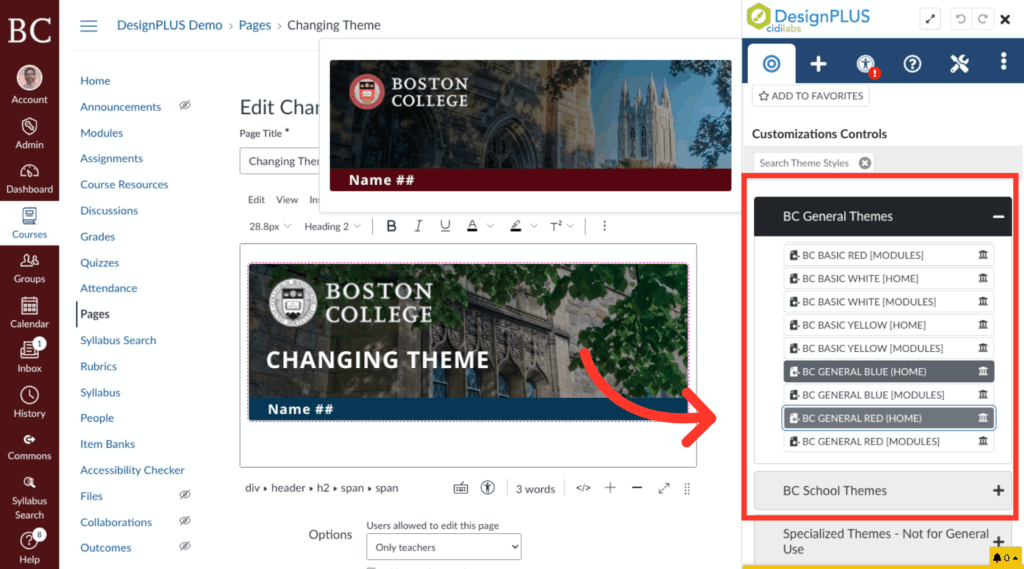
Screenshot of a web page editor showing two Boston College theme banners, a sidebar with theme options highlighted, and a red arrow pointing from the options to a preview of the selected banner style.

6. Click the Save Button

Finally, click “Save” in the lower right.
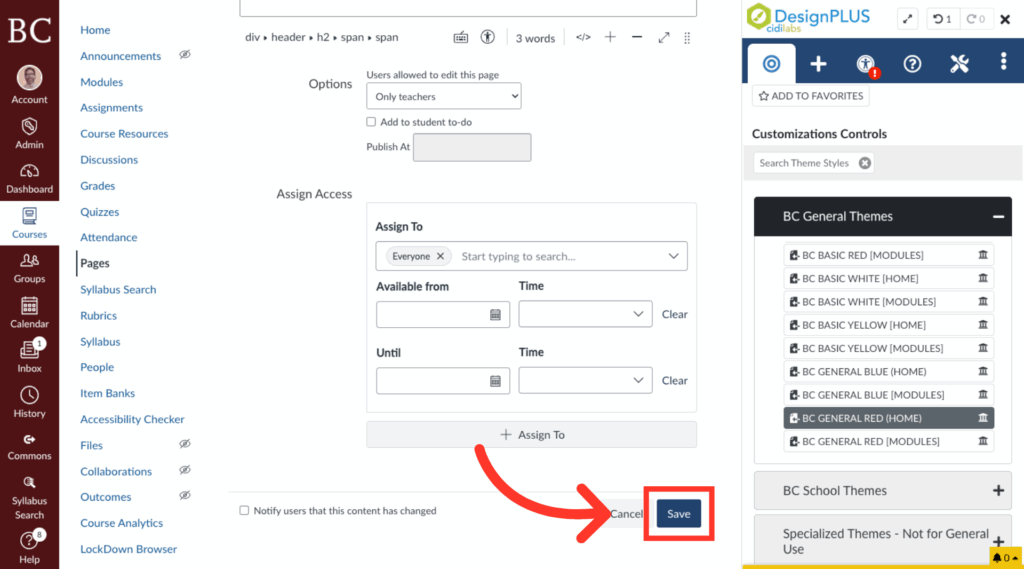
Screenshot of a webpage showing page access assignment options, a Save button highlighted with a red rectangle and arrow, and a sidebar with theme customization controls on the right side.

Last Updated